Your first share
A walk through one meeting: set up a draft, go Live, share Curtains Presenter, and end when you're done.
On this page
This page follows one meeting from the moment you join to the moment you leave, so you know what Curtains does at each point. If Curtains isn’t installed yet, start with the Quickstart.
-
Join your call as usual
Open your meeting app and join. You don’t need to share anything yet.
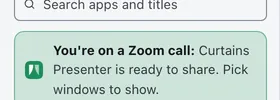
Curtains notices the call. It only asks the system whether the microphone or a camera is in use, and by which app, so it knows you’re on a call. When it does, Sources in Studio says You’re on a Zoom call: Curtains Presenter is ready to share, with the name of your meeting app.
Curtains Presenter is already open, behind your other windows, showing a holding card that says Starting soon. That means it’s already in your meeting app’s list of windows to share. It opens when Curtains starts (Settings › Presenter › Open Curtains Presenter at launch) and when a call starts (Settings › Calls › Open Curtains Presenter when a call starts), both on by default. See Call detection.
-
Pick your windows
Open the windows you want to show. In Curtains Studio, click them in Sources, in the order you want them on the canvas. Your first pick starts a draft: the windows appear on the stage, and nothing is shared yet. See Drafts and Go Live.
While you’re still in the draft, set up everything viewers will see: a layout in the Layout panel, a theme, and blur over anything private. Use Prepare (Option-click) on a window if you want it blurred from its first frame.
-
Go Live
Click Go Live at the top right of the stage. Curtains Presenter fills with your windows, in the same window if it was already open, and it’s Live at once, set up exactly as you left it.
Each window on the canvas now has a green outline and a tab on your desktop. They’re only for you: viewers never see them. The outline is gray while you’re Paused or in a draft.
-
Share Curtains Presenter in your meeting
In your meeting app, share a window, not your entire screen, and pick Curtains Presenter. If your call was already detected, you can do this before you go Live. Viewers see Starting soon until you do. You can also share it before you pick any windows: it opens blank when Curtains starts, and viewers see only the canvas background until you go Live.
The exact clicks for each app are in Sharing in your meeting app.
You only do this once. Leave Curtains Presenter behind your other windows and don’t minimize it.
-
Present from your own windows
Keep working in your real apps. Curtains shows what’s on the canvas, and the meeting keeps sharing the same window.
- When Studio isn’t in front, a small floating remote appears on your desktop with Layout, Draw and Blur buttons, Pause sharing or Go Live, and Open Studio. See Floating remote and menu bar.
- Add or remove a window by clicking it in Sources in Studio.
- Press Control Option ] for the next layout, or Control Option 1 to Control Option 6 to make a window the big one. See Keyboard shortcuts.
- To point at something, use the tools attached under each shared window. See Draw on your windows.
-
Pause when you need privacy
Press Control Option P, or click Pause sharing on the remote, and viewers see a holding card that says Paused. Your windows are hidden from them from the next frame. Press it again to go Live. See Live, Paused and End.
-
End when you’re done
Click End next to the Live / Paused switch in Studio, or choose End share from the floating remote’s ⋯ menu. Curtains Presenter goes back to blank, so your meeting app keeps sharing the same window and viewers see only the canvas background, and your windows go back to the sizes they had if Curtains resized any.
You can leave the meeting, or share something else, as normal. Curtains stays in the menu bar, ready for the next call.
Next time
Pick the same windows again from Combos: a combo saves a set of apps with their layout, so one click, or one shortcut, brings them back. See Combos.
Next steps
- Studio tour: every part of Studio, and where to find it.
- Layouts and Focus: arrange the canvas while you present.
- Blur and hide: keep private things private.
- Troubleshooting: when the meeting doesn’t show what you expect.