Drafts and Go Live
Picking windows starts a draft only you can see. Arrange it, then Go Live to open Curtains Presenter.
On this page
Picking a window starts a draft, a private preview of your canvas, and nothing is shared until you click Go Live.
Start a draft
In Sources, click a window. That’s all it takes. The window appears on the stage, and the stage bar says Not shared yet. Keep clicking to add more windows, in the order you want them on the canvas, and click a picked window to take it off.
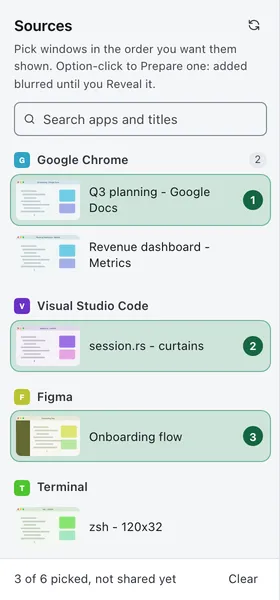
The footer of Sources counts your picks: 3 of 6 picked, not shared yet. The limit is your plan’s: Free shares up to two windows, and Pro, Lifetime, Pro for teams and the 14-day trial share up to six. At the limit the other windows can’t be picked until you take one off. See Plans.
What a draft is
A draft is Studio’s private stage:
- Only you see it. There’s no Curtains Presenter window yet, so nothing is listed in a meeting app or visible to anyone else.
- Only the windows you picked are captured, and only to draw your preview.
- The status line says Not shared yet: only you see this preview.
- The preview’s title bar shows no LIVE mark, since you aren’t.
- Each picked window gets a gray outline and a tab on your desktop that says Not shared yet.
Set it up in private
Do everything you’d do while presenting, with no one watching:
- Choose a layout and arrange the windows. See Layouts and Rearrange windows.
- Focus a window. See Focus.
- Fit your real windows to their cells. See Fit and resize windows.
- Blur parts of a window, or the whole window. See Blur and hide.
- Draw to try the tools. See Draw on your windows.
- Pick a theme. See Themes and custom backgrounds.
- Save what you have as a combo. See Combos.
Whatever you set is what viewers see the moment you go Live.
Prepare a window
If a window has something you need to hide, use Prepare so it’s added blurred from its very first frame. Option-click the window in Sources, or hover over its row and click Prepare. Studio’s preview shows the window blurred with a Reveal button on it; click Reveal when you’re ready for viewers to see it.
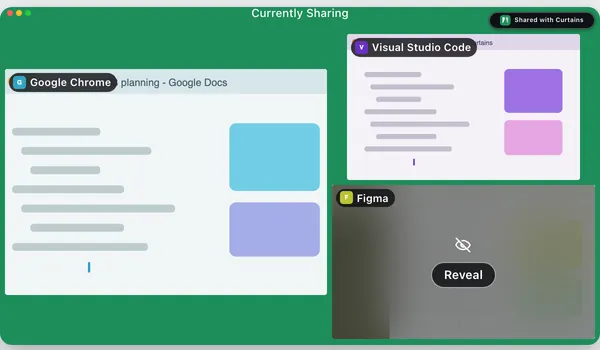
This is not the same as Hide from this list, which only moves an app out of Sources. Prepare adds the window, blurred. See Apps in Sources.
Go Live
When the preview looks right, click Go Live at the top right of the stage.
You can also choose Go Live from the menu bar icon. Keyboard shortcuts never take you Live from a draft: the Live / Paused shortcut does nothing until you’ve gone Live, so a stray key can’t put your windows in front of viewers.
What changes when you go Live
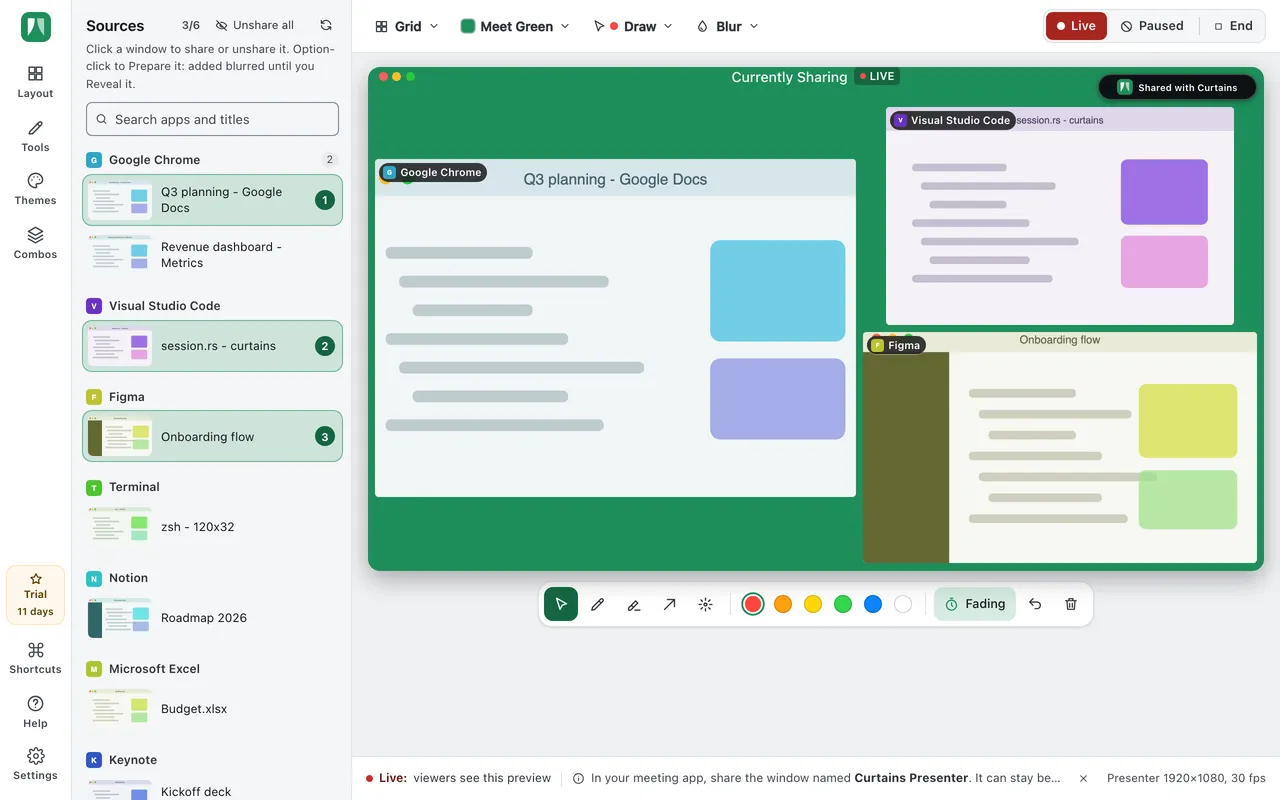
In one step, the draft becomes the session exactly as you arranged it: windows, order, layout, focus, blur, drawing and theme.
- Curtains Presenter opens behind Studio. It’s Live at once, with every blur already applied. If Curtains Presenter was already waiting for your call, that same window is used.
- The stage bar changes to the Live / Paused switch with End. The status line says Live: viewers see this preview.
- The panel on the right folds away to give the stage room. Open it from the rail any time; it stays open until the next time you go Live.
- The outlines change from gray to your accent color, green by default, and each tab says Live.
Going Live from a draft is always Live, even with Start Paused on. That setting is for sessions that start another way, such as from a combo or at login, which begin Paused so you can check them first. See Live, Paused and End.
Then, in your meeting app, share Curtains Presenter. The line under the preview reminds you. See Sharing in your meeting app.
End a draft
A draft ends when you take off every window, or click Clear in the footer of Sources. Capture stops. Starting a combo replaces the draft with the combo.
Next steps
- Studio tour: where everything is.
- Sharing in your meeting app: pick Curtains Presenter in Zoom, Meet, Teams and more.
- Live, Paused and End: control what viewers see.