Floating remote and menu bar
Control a session while Studio is behind your meeting: the floating remote and the Curtains menu bar menu.
On this page
When you’re presenting, Studio is usually behind your meeting, so Curtains gives you two small controls that stay within reach: a floating remote on your desktop, and a menu in the menu bar.
The floating remote
The remote is a small dark palette that floats above your other windows. It appears by itself when a session is running and Studio isn’t the window in front: another app is in front, Studio is covered or minimized, or Curtains is hidden with Command H. It goes away when you bring Studio back to the front.
It shows within half a second of Studio leaving the front, so it’s there when you switch to your meeting.
It’s built to stay out of the way:
- It never takes focus, so your meeting app keeps focus and typing.
- It floats above normal windows on every desktop space, full-screen apps included.
- Viewers never see it. By default Curtains hides it from screen capture whenever Curtains Presenter is open. See Screenshots and screen sharing.
- It doesn’t appear in Mission Control or the app switcher.
It doesn’t appear while you’re in a draft, since nothing is shared yet.
What’s on it
The top line tells you what viewers see: a red dot and Live, or a gray dot and Paused. Hover over any button for a tooltip.
- Layout goes to the next layout, and its icon shows the current one. The tooltip names both, for example Grid → Focus. See Layouts.
- Draw shows or hides the drawing toolbars under your shared windows. It’s green while they’re shown. See Draw on your windows.
- Blur blurs the whole window of the shared app that’s in front on your desktop, or, if none is, the focused window on the canvas. It’s green while that window is blurred; click it again to remove the blur. It’s dimmed when there’s no shared window to blur, and the tooltip names the window it acts on. See Blur and hide.
- Pause sharing shows viewers the holding card while you’re Live. While you’re Paused the button reads Go Live and is green. See Live, Paused and End.
- Open Studio brings Studio forward. The remote goes away at once.
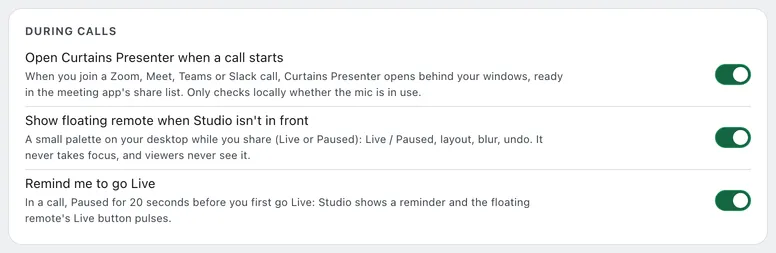
In a call, if you stay Paused for 20 seconds before you first go Live, a ring around Go Live pulses as a reminder. With Reduce motion turned on in your Mac’s Accessibility settings, the ring stays still instead.
VoiceOver reads every button by its label, and says whether Draw and Blur are on or off.
The ⋯ menu
The ⋯ button at the top right opens a menu with the rest:
- Undo drawing removes your last stroke.
- Focus next window and Focus previous window make the next or previous window the big one. They need at least two windows. See Focus.
- End share stops capturing and returns Curtains Presenter to blank, like End in Studio.
- Hide remote hides the remote until you next switch away from Studio, or until a new session starts.
Move, hide and show it
- Move it. Drag the top line, by the Live or Paused label or the grip beside ⋯. Curtains remembers where you put it, and keeps it fully on one screen. The first time, it appears at the bottom right of your main display, above the Dock.
- Show or hide it. Press Control Option R, or choose Show remote or Hide remote in the menu bar menu. Either works even while Studio is in front, and even if the remote is turned off in Settings. Neither does anything without a session, or in a draft.
- Turn it off. Switch off Show floating remote when Studio isn’t in front in Settings › Calls.
The menu bar menu
Curtains puts an icon in the menu bar. Click it for a menu that works whether Studio is open or not.
- Open Curtains Studio brings Studio forward.
- A status line says On a Zoom call, naming your meeting app, or On a call, or No call detected. See Call detection.
- Go Live or Pause. While a session is Live it reads Pause. While it’s Paused, or in a draft, it reads Go Live. In a draft it fills Curtains Presenter and goes Live.
- Show remote or Hide remote toggles the floating remote. It works while a session is running, not in a draft or with only the blank Curtains Presenter open. Go Live, Pause and Bring to front are also unavailable then.
- Bring to front is a submenu with one item per window on your canvas, in canvas order, named like Google Chrome: Q3 planning - Google Docs. Choose one to jump to that exact window. It doesn’t change the canvas. See Bring to front.
- A line says whether Curtains is hidden from screenshots right now, with Allow screenshots for 5 minutes below it. See Screenshots and screen sharing.
- Quit Curtains quits the app and ends any session.
Items that don’t apply are dimmed. With no session, there’s nothing to go Live with, no remote to show, and no windows to bring to the front.
Keep Curtains in the menu bar
Closing Studio doesn’t quit Curtains. It keeps running in the menu bar so it can notice a call. If you’d rather it quit when you close Studio, turn off Keep running in the menu bar when Studio is closed in Settings › General.
Next steps
- Keyboard shortcuts: the same controls from any app.
- Studio tour: where everything lives in Studio.
- Call detection: how Curtains knows you’re on a call.