Draw on your windows
Point things out with the pen, highlighter, arrow and laser, on the Studio preview or right on your real windows.
On this page
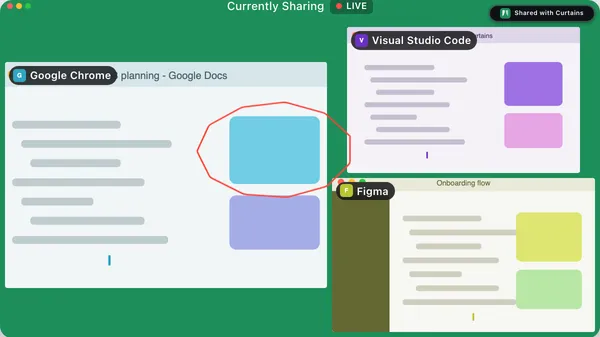
You can draw on what viewers see, either on Studio’s preview or straight on your real windows, and your ink appears in the share as you draw.
Two places to draw
- The Studio preview. Pick a tool and draw on the preview. This works whether you’re Live or Paused, and in a draft.
- A real shared window. A small toolbar sits under each shared window on your desktop. Pick a tool there and draw on the real app, without opening Studio.
Both draw the same ink in the same place. Viewers can’t draw, and you can’t draw in the Curtains Presenter window itself.
Draw on the preview
The ink toolbar sits under the preview. From left to right: Move, Pen, Highlighter, Arrow, Laser, six colors, Fading or Persistent, Undo and Clear.

- Click a tool. The pointer now draws on the preview.
- Click a color if you want something other than red.
- Drag over the preview.
- Pick Move to arrange windows again.
The stage bar’s Draw menu has the same tools and colors, and a Fading ink switch. The Tools panel lists every tool with its name, and adds the fade delay.
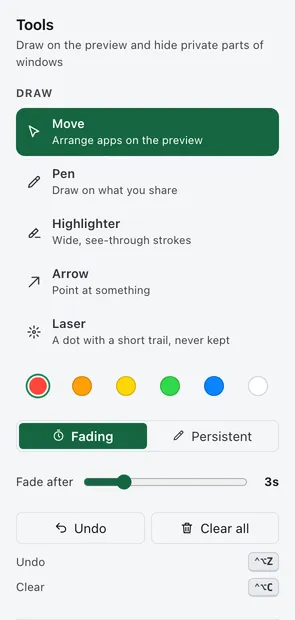
Choosing a color while Move or Laser is selected switches you to the Pen.
Draw on a real window
Each shared window has a toolbar attached just below it, lined up with its outline. It has the same tools as the preview, plus Blur (see Blur and hide). Only you see it; viewers never do.
Picking a tool or a color in a window’s toolbar arms that window: a see-through layer covers it and takes your mouse or pen, and a faint colored frame reminds you the app isn’t clickable for the moment. Other windows and your desktop are unaffected. To go back to the app, do any of these:
- Press Esc.
- Pick Move, in this toolbar or in Studio.
- Click another app.
If a window would leave no room for the toolbar below it, because it touches the bottom of the screen, the toolbar moves above its top-right corner, or, for a maximized window, inside its bottom edge. The toolbar stays clickable while you draw.
The toolbars and the outline can each be turned off. Show tools under shared windows and Highlight shared windows are in Settings › Windows. The Draw button on the floating remote shows or hides the toolbars during a session. The toolbars are hidden while a window is minimized, on another Space, or when no session is running.
The tools
- Pen draws a line. A pressure-sensitive pen gives lines that vary in width; otherwise the width is constant.
- Highlighter draws wide, see-through strokes, for marking text.
- Arrow points at something.
- Laser is a dot with a short trail that is never kept. Use it to follow along while you talk.
The six colors are red, orange, yellow, green, blue and white. Red is the default.
Fading or persistent ink
Fading ink disappears a few seconds after you lift the pen. It’s the default, and it keeps the canvas tidy. Persistent ink stays until you undo or clear it. Click the button in any toolbar to switch.
The delay is Fade after in the Tools panel, from 1 to 10 seconds, 3 by default. Fade delay and Fade ink by default in Settings › Presenter do the same job.
Content inside a window can scroll under your ink, and Curtains doesn’t track that. Fading ink is the easiest way around it.
Undo and clear
Undo removes your last stroke. Clear removes all ink. They work on all ink, wherever you drew it, from any toolbar or from the keyboard: Control Option Z undoes and Control Option C clears, from any app. You can change both in Settings › Shortcuts.
Ink stays with its window
Each stroke belongs to the window you drew it on, or to the canvas if you drew over the background. If you change the layout or move the window, the ink moves with it. If you resize the real window, persistent ink on it is cleared, because its content has reflowed.
Draw with the keyboard
You can draw without a pointer. With a drawing tool picked, press Tab to focus the preview. A pen point appears.
- Move the point with the arrow keys. Hold Shift for bigger steps.
- Press Space or Enter to start a stroke.
- Move with the arrow keys to draw.
- Press Space again to end the stroke. Esc ends it too.
Related
- Blur and hide: the toolbar’s other job.
- Floating remote and menu bar: the Draw button.
- Keyboard shortcuts
- Settings