Studio tour
The parts of Curtains Studio: the rail, Sources, the stage and its preview, and the Layout, Tools, Themes and Combos panels.
On this page
Curtains Studio is where you pick windows, arrange them and run the session; viewers see only the result, in Curtains Presenter.
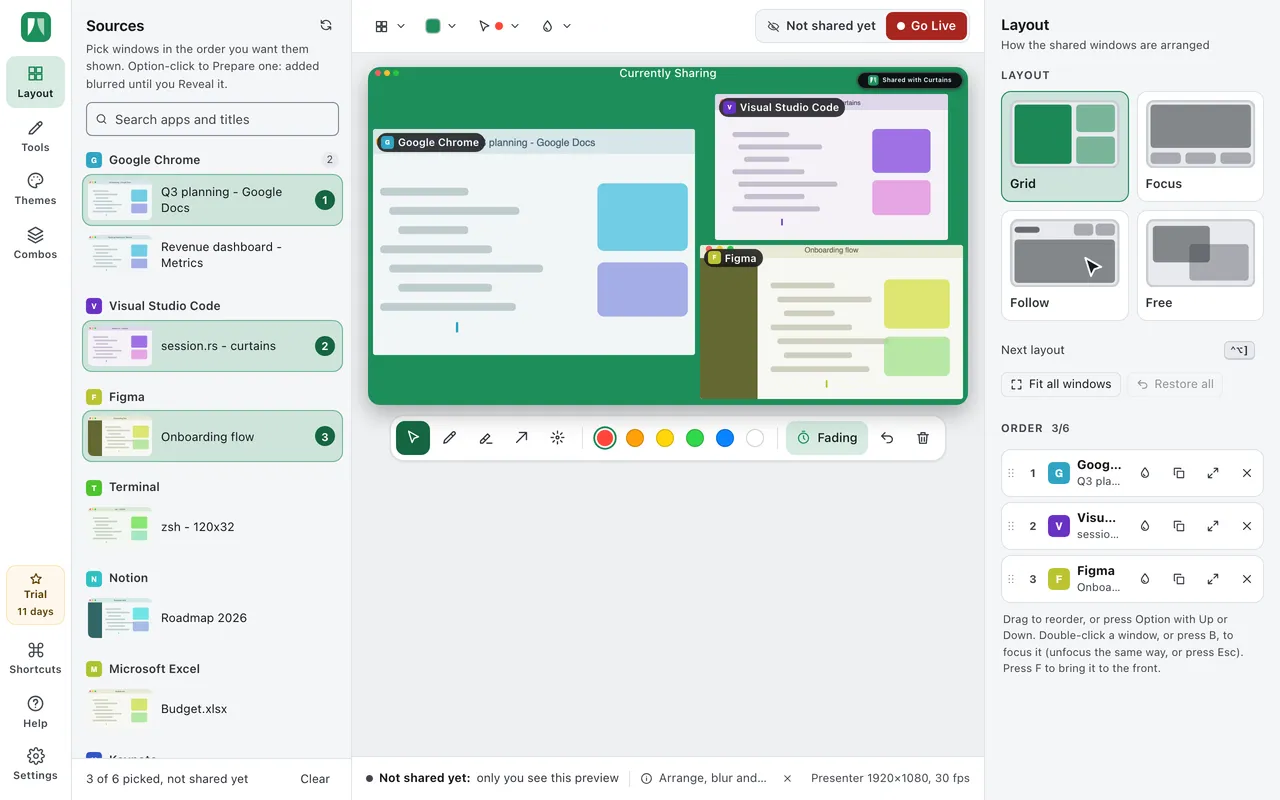
From left to right, Studio has a rail, Sources, the stage, and a panel. The stage is the middle, with its bar on top, the preview in the center, and a status line below.
Open Studio
Studio opens when you start Curtains. If you’ve closed it, Curtains is still running in the menu bar, so you can bring it back in any of these ways:
- Click Curtains in the Dock.
- Choose Open Curtains Studio from the menu bar icon.
- Press Control Option S from any app. Studio comes forward with the search box in Sources ready to type in.
Closing Studio doesn’t quit Curtains and doesn’t end a session. See Floating remote and menu bar.
The rail
The rail is the strip of icons on the left edge.

- Layout, Tools, Themes and Combos open the panel on the right. Clicking the one that’s open folds the panel away, and clicking it again brings it back.
- The plan item shows where you are: Trial with the days left, Free, Pro, Lifetime, Team, or Renew when a pass needs renewing. It opens your account page. See Plans.
- Shortcuts opens a sheet listing your keyboard shortcuts. See Keyboard shortcuts.
- Help opens this help center in your browser.
- Settings opens the full-width settings page. See Settings.
Sources
Sources lists every window you can share, with a small live thumbnail, grouped by app. Windows you can’t share, such as the desktop, the Dock and the windows of Curtains itself, are left out.
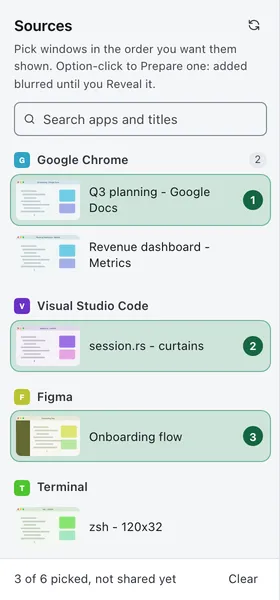
- Click a window to pick it, and click it again to take it off. The number on a picked window is its place on the canvas: the order you click is the order they start in.
- Type in the search box to filter by app name or window title.
- The refresh button at the top reloads the list.
- Each row has a ⋯ button, shown when you hover over the row, or right-click the row, with Hide App from this list. Only work apps show by default. Everything else, and any app you hide, waits in a Hidden section at the bottom. See Apps in Sources.
- Prepare adds a window already blurred. See Drafts and Go Live.
- While you’re sharing, the top of Sources shows how many windows you’re sharing out of your limit, and Unshare all, which takes every window off while Curtains Presenter stays open in your meeting.
- When no session is running, your saved combos appear at the top of Sources, each with a Start button. See Combos.
The stage
The stage is the middle of Studio. With nothing picked it says Share several windows as one and points you to Sources. Pick a window and the stage shows your canvas.
The stage bar
The bar along the top of the stage has quick menus on the left, so you rarely need to open a panel in the middle of a call: Layout, Theme, Draw and Blur. Layout also holds Fit all windows.
On the right is the control for the session. Before you go Live it reads Not shared yet with Go Live. After, it’s the Live / Paused switch with End.

The preview
The preview is your canvas, drawn live: what’s here is what viewers see in Curtains Presenter. Drag a window onto another to swap them, and double-click a window to Focus it. See Layouts and Focus.
Labels, outlines, blur boxes and the Reveal button that you see on the preview are for you. They’re never drawn in Curtains Presenter.
Below the preview sits the toolbar for drawing on it. See Draw on your windows.
Notices above the preview
Sometimes a note appears above the preview, never on it. The Share it in your meeting card shows the clicks for your meeting app, and a banner reminds you to go Live when you’re in a call and viewers still see the holding card. See Sharing in your meeting app and Live, Paused and End.
The status line
The line under the preview says what viewers see: Not shared yet: only you see this preview, Live: viewers see this preview, or Paused: viewers see the holding card. In the middle it shows a hint for the mode you’re in, such as blur mode or the Free layout, and on the right the output size, like Presenter 1920×1080, 30 fps if your window is wide enough.

The panels
The panel on the right changes with the rail. It folds away on its own in a narrow window, and while you’re Live, to give the stage room. See Drafts and Go Live.
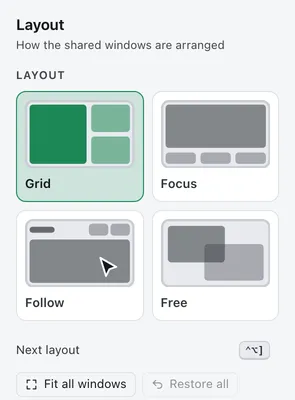
- Layout picks how windows are arranged, with the Order list below it: drag to reorder, double-click to Focus, and use the row buttons to blur the whole window, bring it to the front, change its size or unshare it.
- Tools holds the ink options and the blur regions. See Draw on your windows and Blur and hide.
- Themes sets what viewers see around your windows, including the badge. See Themes and custom backgrounds.
- Combos saves what you share now as a combo and starts saved ones. See Combos.
On your desktop
Outside Studio, Curtains draws a few small things next to your real windows, all hidden from your meeting while you present: the outline and tab on each shared window, the tools under it, and the floating remote. See Floating remote and menu bar.
Next steps
- Drafts and Go Live: set up in private, then share.
- Live, Paused and End: control what viewers see.
- Settings: every switch, by section.