Themes and custom backgrounds
Pick the canvas behind your windows. Presets are free; Pro adds your own colors, gradients, background images and overlays.
On this page
A theme is the look of the canvas around your windows, and the five presets are free on every plan.
Pick a theme
Open the Themes panel in the rail on the left edge and click a card. Viewers see the change at once. The Theme menu in the stage bar has the same list, so you can switch in a call without changing panels.
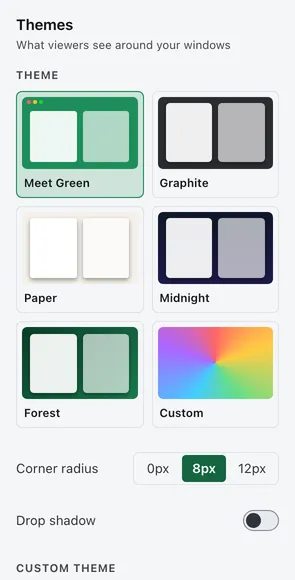
The presets are Meet Green, Graphite, Paper, Midnight and Forest. Meet Green adds a title bar across the top that reads “Currently Sharing”, with a red LIVE pill while you’re Live. The pill never shows in a draft or while Paused, so the preview never contradicts the state.
Adjust corners, shadow and padding
Below the cards, Corner radius sets the window corners to 0, 8 or 12 pixels, and Drop shadow turns the shadow behind windows on or off. Both are free.
The space around and between windows is Window padding in Settings › Presenter, with 0, 8, 16 or 32 pixels. Settings › Presenter also has the Canvas theme setting, which is the same choice as the panel.
The look of Studio itself (light, dark or the system setting, and its accent color) is separate: set Appearance in Settings › General. It doesn’t change what viewers see.
The Shared with Curtains badge
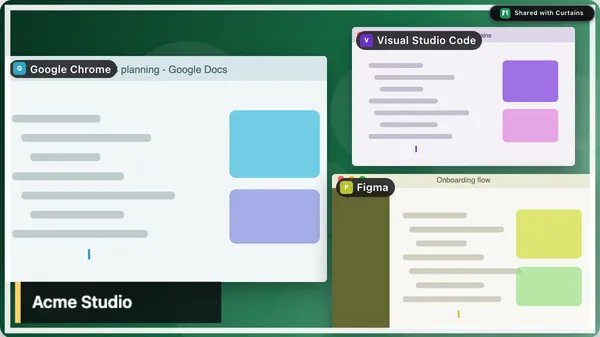
The Shared with Curtains badge is a small pill in a corner of the canvas. In the Themes panel you can choose the corner. On Free and during the trial it’s always on. Pro feature Turning it off is a Pro, Lifetime and Pro for teams setting: Show the badge to viewers. Layouts keep windows clear of it, and in Follow it sits at the left of the top strip, whichever corner you choose.
Custom themes
Scroll to Custom theme in the Themes panel. Changing anything there switches to your custom theme, and the Custom card shows it.
Colors and gradients
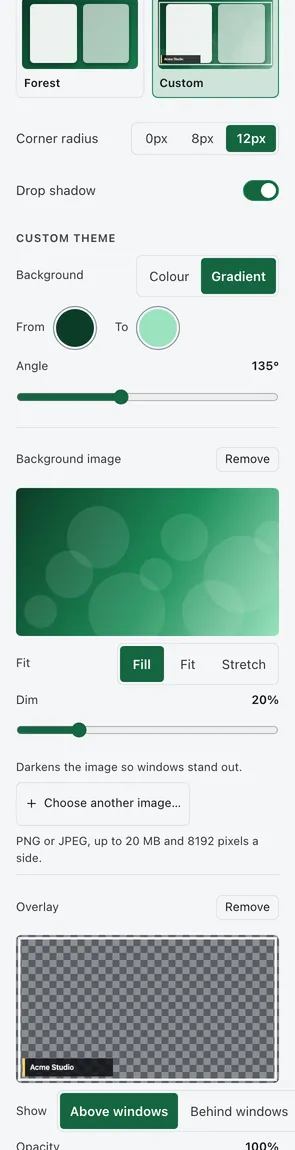
Under Background, choose Colour and pick a color, or choose Gradient. A gradient blends two colors, From and To, at any angle from 0 to 345 degrees in steps of 15.
A background image
Click Choose background image… and pick a PNG or JPEG of up to 20 MB and 8192 pixels on a side. Then choose how it fills the canvas:
- Fill covers the canvas and crops the overflow.
- Fit shows the whole image, and your background color shows in the bars.
- Stretch pulls the image to the canvas shape.
The Dim slider darkens the image from 0 to 90 percent, so windows stay readable on a busy picture. Remove takes the image away.
An overlay
An overlay is a transparent PNG drawn over the whole canvas, such as a brand frame, a corner logo or a lower third. It’s fitted with its shape kept, so a 16:9 image, like 1920 by 1080, fits exactly. Click Choose overlay…, then:
- Under Show, choose Above windows (the default) or Behind windows.
- Move Opacity from 10 to 100 percent.
Ink, your cursor, the Shared with Curtains badge and the holding card are always drawn over the overlay. The overlay is never something you can click in Studio: drags go through it to the windows below. If a PNG has no transparent areas, it covers the canvas, and Curtains says so; lower its opacity or use one with transparency.
Where your images go
Curtains only reads the file you choose. It checks it, makes its own copy without hidden metadata, and keeps that copy in its settings folder on your Mac. The original is never read again, and images no theme uses are deleted.
When your plan ends
A custom theme you made on Pro or during the trial is kept, but viewers see its preset’s background, with the frame, corners and shadow, until your plan includes custom themes again. Picking a preset doesn’t delete it; click Custom to bring it back.