Live, Paused and End
What viewers see while you're Live or Paused, the holding card, and how End closes Curtains Presenter.
On this page
Once Curtains Presenter is open, one control decides what viewers see: Live shows your windows, Paused shows a holding card, and End returns it to blank.
The session control
At the right of the stage bar is the Live / Paused switch, with End attached.
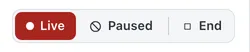
- Live: viewers see your windows, as arranged. The status line says Live: viewers see this preview.
- Paused: viewers see a holding card instead of your windows. The status line says Paused: viewers see the holding card.
- End: ends the session and returns Curtains Presenter to blank.
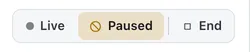
You can’t reach the switch from a draft, since nothing is shared yet. A draft has Not shared yet and Go Live instead. See Drafts and Go Live.
Switch between Live and Paused
Any of these toggles it:
- Click Live or Paused in Studio.
- Press Control Option P from any app. The switch’s tooltip shows your shortcut.
- Click Pause sharing or Go Live on the floating remote. See Floating remote and menu bar.
- Choose Pause or Go Live from the menu bar icon.
The arrow keys never switch the two, so you can’t go Live by accident. Tab to Live or Paused, then press Enter or Space.
The holding card
While Paused, Curtains Presenter shows your theme’s background and title bar with a dark card in the middle. No window shows, so nothing on your screen reaches viewers from the next frame on.
The card says one of two things:
- Starting soon, before you’ve gone Live in this session. It’s also what Curtains Presenter shows while it waits for you in a call.
- Paused, after you were Live and paused.
Pause to get things ready
While you’re Paused, Studio’s preview still shows your real canvas. That makes Paused a good time to arrange windows, add a blur region or add a window hidden before anyone sees it.
A session that starts any way other than a draft’s Go Live begins Paused: starting a combo, using a combo’s shortcut, or a session started at login. The Start Paused setting in Settings › Presenter, on by default, controls it. Then click Live when it looks right.
The Go Live reminder
Say a session starts Paused while you’re in a call, from a combo for example, and you haven’t gone Live yet. Viewers see Starting soon. After 20 seconds, Studio shows a reminder above the preview, and a ring around the Go Live button on the floating remote pulses.

Click Go Live, or the × to dismiss it for this session. It’s gone for good once you’ve been Live, so pausing again later is never nagged about. To turn the reminder off, switch off Remind me to go Live in Settings › Calls. No system notifications are sent.
End
End ends the session and returns Curtains Presenter to blank: viewers see only the canvas background, and your meeting app can keep sharing the same window. Studio goes back to the empty stage with Sources. If you turned off Open Curtains Presenter at launch, End closes Curtains Presenter instead, so your meeting app stops sharing it.
- Windows that Curtains resized go back to their original sizes, unless you’ve turned off Restore window sizes when you are done in Settings › Windows.
- During a call, Curtains Presenter shows Starting soon after you end, until you go Live again.
- Closing Studio doesn’t end the session. Curtains keeps running in the menu bar and Curtains Presenter stays open. Quitting Curtains does end it.
When a shared window changes
Viewers see what happens to your windows, even in the middle of a share:
- A window is minimized. Viewers see its last frame, dimmed, with a Minimized badge. Studio tells you which window.
- A window closes, or its app quits. It leaves the canvas and Studio tells you.
- A window moves to another display. Curtains keeps capturing it.
If Curtains Presenter has a problem
Studio shows a message when your meeting app can’t capture it properly: when Curtains Presenter is minimized, when Curtains is hidden with Command H, or when the window is smaller than the output. See Sharing in your meeting app.
Next steps
- Floating remote and menu bar: switch Live and Paused without opening Studio.
- Blur and hide: keep private things out of the share.
- Keyboard shortcuts: all your shortcuts.