Screenshots and screen sharing
When Curtains hides its own windows from screen sharing and screenshots, and how to change it.
On this page
Curtains hides its own windows from screen sharing while it matters, so viewers never see Studio, and it shows up in your own screenshots the rest of the time.
Which windows this covers
Curtains has a few windows besides the one you share:
- Studio, where you pick windows and set things up.
- The floating remote.
- The highlight outline and tab around each shared window on your desktop.
- The per-window toolbars under each shared window.
“Hidden” means macOS leaves these out of every screen capture: a shared screen, a recording, a screenshot. Curtains Presenter is not part of this. It is the window you share, so screen sharing can always capture it.
The three choices
Open Settings › Privacy & updates. The setting is Hide Curtains from screen sharing and screenshots.
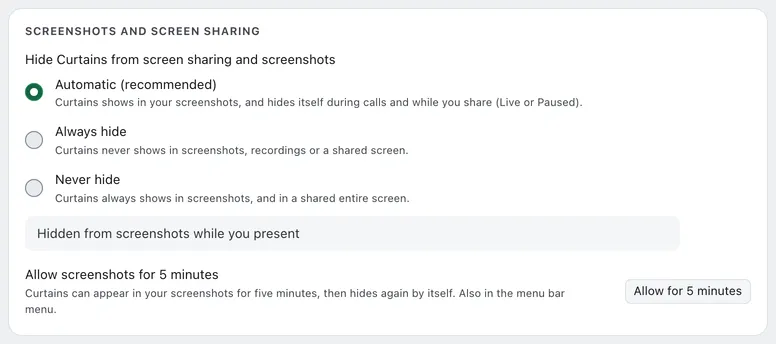
- Automatic (recommended) is the default. Curtains shows in your screenshots like any app, and hides itself during calls and while you share (Live or Paused). The blank Curtains Presenter that opens at launch doesn’t hide it.
- Always hide. Curtains never shows in screenshots, recordings or a shared screen.
- Never hide. Curtains always shows, including in a shared entire screen.
Changes apply at once. You don’t need to restart Curtains.
A draft alone doesn’t hide Curtains: nothing is shared yet, so Studio is just your private stage. A draft during a detected call does hide it, because the call rule applies.
Check what Curtains is doing
The line under the choices says what Curtains is doing right now and why:
- Hidden from screenshots during this call
- Hidden from screenshots while you present
- Hidden from screenshots (Always hide)
- Visible in screenshots
The menu bar menu shows the same line.
Take a screenshot of Curtains for 5 minutes
Say you want a screenshot of Studio for a bug report while a call is on. Allow it for five minutes.
-
Start the allowance
Click Allow for 5 minutes under the choices, or choose Allow screenshots for 5 minutes in the menu bar menu.
-
Take your screenshot
While it runs, the status reads “Screenshots allowed, 4 min left”, rounded up to whole minutes. Curtains’ windows can appear in screenshots.
-
Hide again
It hides again by itself after five minutes. To end it sooner, click Hide again now.
The allowance also ends when a share starts, because you go Live, when the call ends, and when you change the choice. It is never saved. If you quit Curtains, it ends, and Curtains starts again as your choice says.
The allowance only means something while Curtains is hidden. With Never hide, or in Automatic with no call and no Live or Paused session, Curtains is visible anyway: the menu item is dimmed and the row in Settings isn’t shown.
Choose Never hide
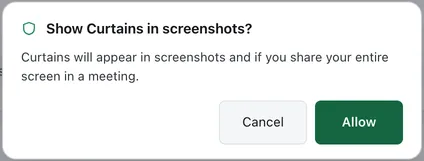
Choosing Never hide asks first. The dialog “Show Curtains in screenshots?” says Curtains will appear in screenshots and if you share your entire screen in a meeting. Click Allow to confirm or Cancel to keep your choice.
The other two choices apply without asking.
Nothing is sent
This setting is stored on your Mac. Nothing about it is sent anywhere.
Related
- Call detection: how Curtains knows a call has started.
- Floating remote and menu bar: the menu bar menu in full.
- Settings: every option in Privacy & updates.