Layouts
Grid, Focus, Follow and Free: how each one arranges your shared windows, and how to switch between them.
On this page
A layout decides where your shared windows sit on the canvas, and you can change it at any time, even while you’re Live.
Pick a layout
Open the Layout panel and click a card. If the panel is folded away, click Layout in the rail on the left edge. The layout menu at the left of the stage bar has the same four choices.
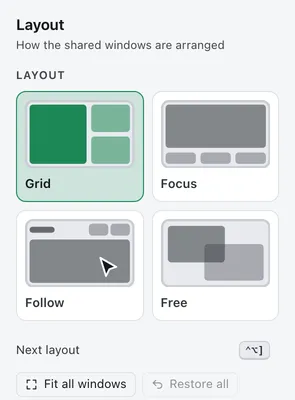
You can pick a layout before you pick any window; the first draft starts with it. A saved combo remembers its layout too.
Every layout keeps each window’s shape. A window that doesn’t match its space gets bars around it instead of being stretched. The space around and between windows is Window padding in Settings › Presenter, and the Shared with Curtains badge keeps its corner clear of your windows.
Switch with the keyboard
Press Control Option ] to move to the next layout, from any app. The order is Grid, Focus, Follow, Free, then Grid again. The same action is the Next layout button in the Layout panel and the Layout button on the floating remote. To use other keys, go to Settings › Shortcuts.
Grid
Grid tiles every window so as much of each one as possible stays visible. One window fills the canvas, two sit side by side, three get one large window and two stacked beside it, four make a square, and five or six make three across and two down. Curtains picks the split that shows the most for the windows’ shapes.
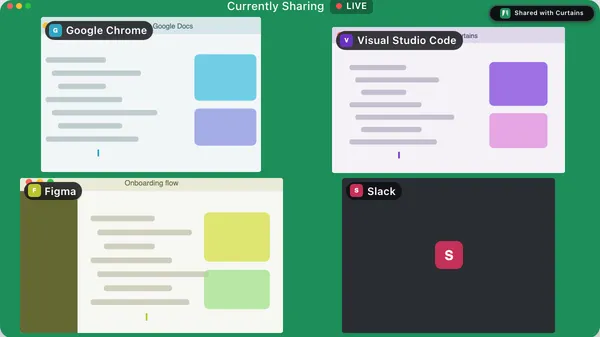
Use Grid when viewers should see everything at once. To change who sits where, see Rearrange windows.
Focus with a filmstrip
Focus makes one window large, with the others as small live thumbnails in a filmstrip. The strip runs along the bottom, or down the right side when the large window is tall. The large window carries a Focused pill.
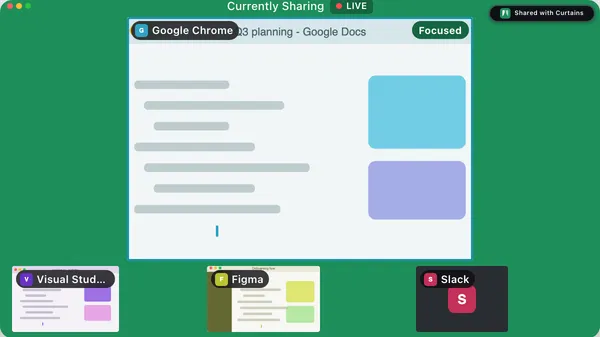
Click a thumbnail on the preview, or a row in the Order list, to make that window the large one. Drag a thumbnail onto the large window to swap them.
Follow
Follow shows the window you’re working in as the large one. A strip across the top holds the Shared with Curtains badge at its left and live tiles of your other shared windows at its right, so viewers always see what else is in the share.
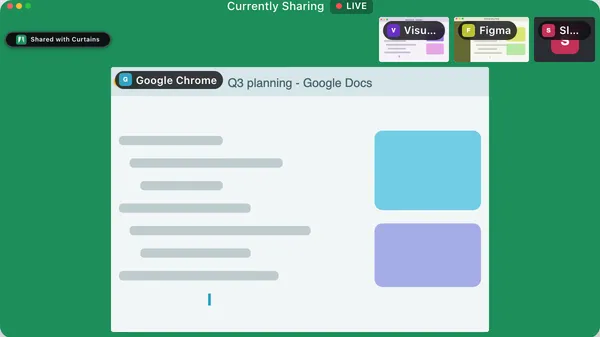
To change the large window, click another shared window on your desktop. If you click an app that isn’t shared, Curtains keeps showing the last shared window you used, and never shows an app you didn’t pick. Dragging a window onto the large one makes it the followed window until you click a different shared window.
With one window the strip holds only the badge. If you turn the badge off (a Pro setting), the strip goes away and the window fills the canvas.
Free
Free puts you in charge. Drag a window to move it, drag its handles to resize it, and let it overlap another if you like. Windows snap to the canvas edges, to each other and to a 12-column grid. Hold Option while you drag to place a window anywhere, with no snapping.
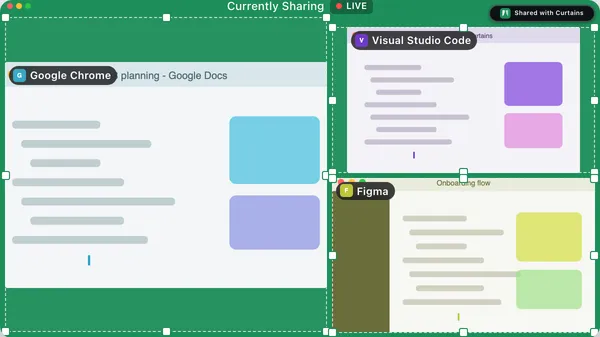
When you switch to Free, every window starts where the previous layout had it. Dragging, snapping and the keyboard are covered in Rearrange windows.
Focus on top of any layout
The Focus action is separate from the Focus layout. In Grid, Follow and Free it makes one window fill the whole canvas until you unfocus it, then puts everything back. See Focus.
Related
- Rearrange windows: drag, reorder and move windows by keyboard.
- Focus: fill the canvas with one window.
- Fit and resize windows: make real windows match their spaces.
- Themes and custom backgrounds: the canvas behind the windows.
- Keyboard shortcuts