Settings
Every setting in Curtains, section by section, with its default.
On this page
Settings has seven sections, and every setting is saved the moment you change it.
Click Settings at the bottom of Studio’s left rail. The sections are listed on the left of the page: General, Presenter, Windows, Apps in Sources, Calls, Shortcuts and Privacy & updates. Use the arrow keys, Home and End to move between them. Studio remembers the last section until you quit Curtains.
To find a setting, type in Search settings at the top. It matches names and descriptions across every section and groups the results by section. Press Esc to clear it.
General
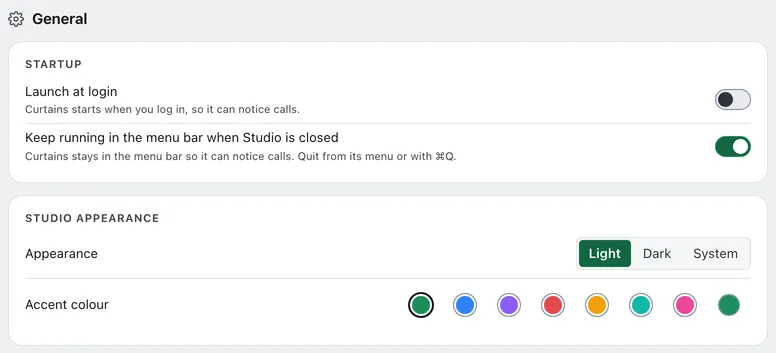
| Setting | Default | What it does |
|---|---|---|
| Launch at login | Off | Curtains starts when you log in, so it can notice calls. |
| Keep running in the menu bar when Studio is closed | On | Closing Studio hides it, and Curtains keeps running in the menu bar so it can notice calls. Quit from the menu, or with Command Q. Off, closing Studio quits Curtains. On Windows it stays in the notification area. |
| Appearance | System | Studio in Light, Dark, or the system setting. |
| Accent colour | Green | The color of buttons, switches and highlights in Studio. Pick Green, Blue, Violet, Red, Amber, Teal or Pink, or choose your own. |
Presenter
These settings change what viewers get.
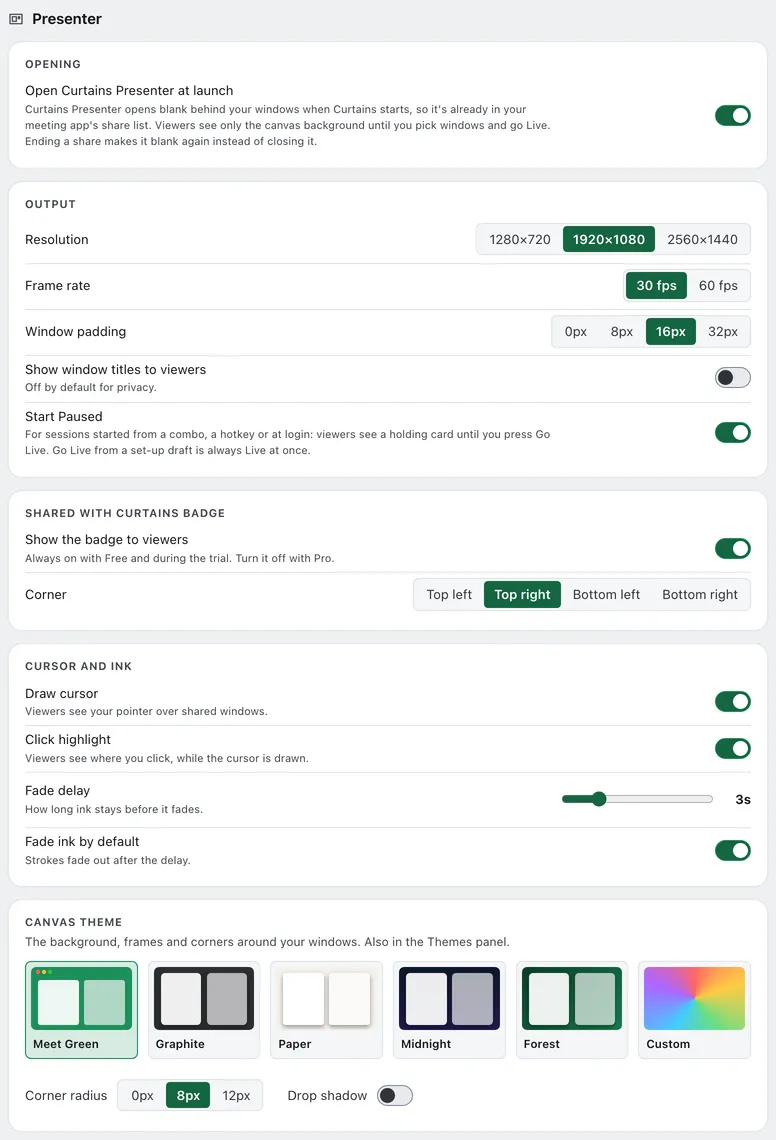
| Setting | Default | What it does |
|---|---|---|
| Open Curtains Presenter at launch | On | Curtains Presenter opens blank behind your windows when Curtains starts, so it’s already in your meeting app’s share list. Viewers see only the canvas background until you pick windows and go Live. Ending a share makes it blank again instead of closing it. Off, it opens when you go Live or a call starts, and End closes it. |
| Resolution | 1920×1080 | The size of the picture viewers get: 1280×720, 1920×1080 or 2560×1440. |
| Frame rate | 30 fps | How smoothly Curtains Presenter moves: 30 or 60 frames per second. |
| Window padding | 16 px | Space around each window on the canvas: 0, 8, 16 or 32 px. |
| Show window titles to viewers | Off | Off by default for privacy. Even when on, a window with any blur or fill never shows its title. |
| Start Paused | On | For sessions started from a combo, a hotkey or at login, viewers see a holding card until you press Go Live. Go Live from a set-up draft is always Live at once. |
| Show the badge to viewers Pro feature | On | The “Shared with Curtains” badge. Always on with Free and during the trial. Turn it off with Pro. |
| Corner | Top right | Where the badge sits: top left, top right, bottom left or bottom right. |
| Draw cursor | On | Viewers see your pointer over shared windows. |
| Click highlight | On | Viewers see where you click. It needs Draw cursor on. |
| Fade delay | 3 s | How long ink stays before it fades, from 1 to 10 seconds. |
| Fade ink by default | On | New strokes fade out after the delay. |
| Canvas theme | Meet Green | The background, frames and corners around your windows. Choose Meet Green, Graphite, Paper, Midnight, Forest or Custom. Custom is Pro. Also in the Themes panel. |
| Corner radius | 8 px for Meet Green | The corners of each window on the canvas: 0, 8 or 12 px. |
| Drop shadow | Off for Meet Green | A shadow under each window. |
See Themes and custom backgrounds and Draw on your windows.
Windows
These settings are about the real windows on your desktop.
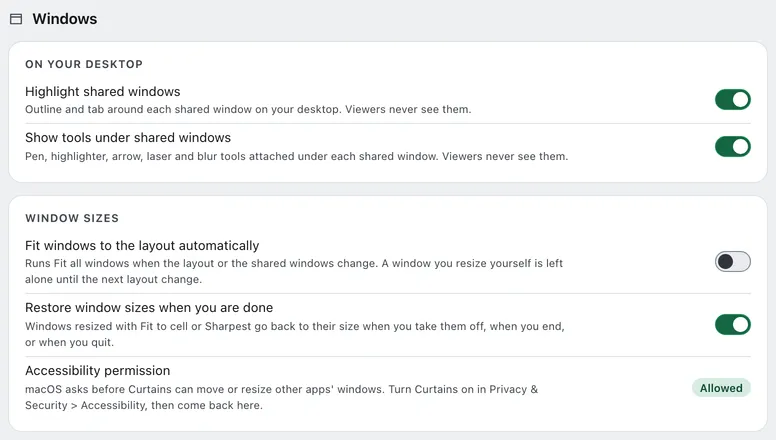
| Setting | Default | What it does |
|---|---|---|
| Highlight shared windows | On | An outline and a tab around each shared window on your desktop. Viewers never see them. |
| Show tools under shared windows | On | Pen, highlighter, arrow, laser and blur tools attached under each shared window. Viewers never see them. |
| Fit windows to the layout automatically | Off | Runs Fit all windows when the layout or the shared windows change. A window you resize yourself is left alone until the next layout change. Turning it on asks first. |
| Restore window sizes when you are done | On | Windows that Curtains resized go back to their size when you take them off, when you end, or when you quit. |
| Accessibility permission | Not a switch | Shows Allowed, Not needed or Not allowed. macOS asks before Curtains can move or resize other apps’ windows. Open Accessibility settings opens the macOS pane. On Windows, it isn’t needed. |
See Fit and resize windows and Bring to front.
Apps in Sources
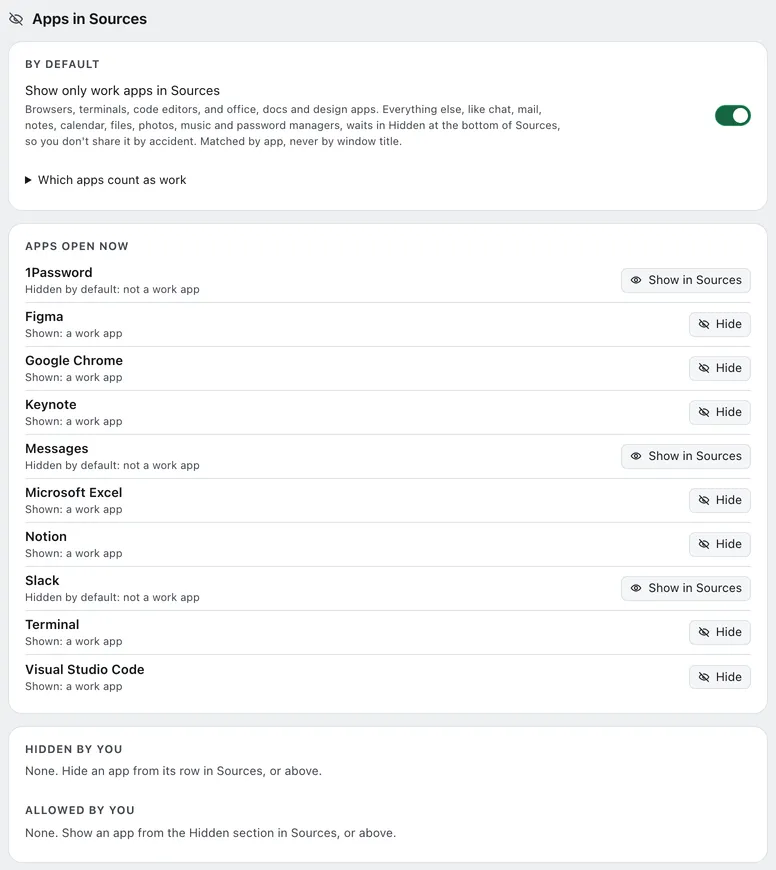
| Setting | Default | What it does |
|---|---|---|
| Show only work apps in Sources | On | Browsers, terminals, code editors, and office, docs and design apps show in Sources. Everything else, like chat, mail, notes, calendar, files, photos, music and password managers, waits in Hidden at the bottom of Sources, so you don’t share it by accident. Matched by app, never by window title. Free on every plan. Which apps count as work lists them. |
| Apps open now | Not a setting | Each app with a window open, whether it’s shown or hidden and why, with Show in Sources or Hide, and Reset for an app you changed. |
| Hidden by you | None | Apps you hid by hand, including work apps. Click Reset beside one to go back to the default. |
| Allowed by you | None | Apps you chose to show that the default would hide. Click Reset beside one to go back to the default. |
See Apps in Sources.
Calls
| Setting | Default | What it does |
|---|---|---|
| Open Curtains Presenter when a call starts | On | When you join a call, Curtains Presenter opens behind your windows, ready in the meeting app’s share list. |
| Show floating remote when Studio isn’t in front | On | A small palette on your desktop while the Presenter is open. It never takes focus, and viewers never see it. |
| Remind me to go Live | On | In a call, after 20 seconds Paused before you first go Live, Studio shows a reminder and the remote’s Go Live button pulses. |
See Call detection and Floating remote and menu bar.
Shortcuts
Every global shortcut, with its default: Undo stroke, Clear all ink, Live / Paused, Next layout, Show Studio sources, Focus or unfocus the active window, Show or hide the floating remote, and Focus source 1 to 6. Click a shortcut, then press the new keys. See Keyboard shortcuts.
Privacy & updates
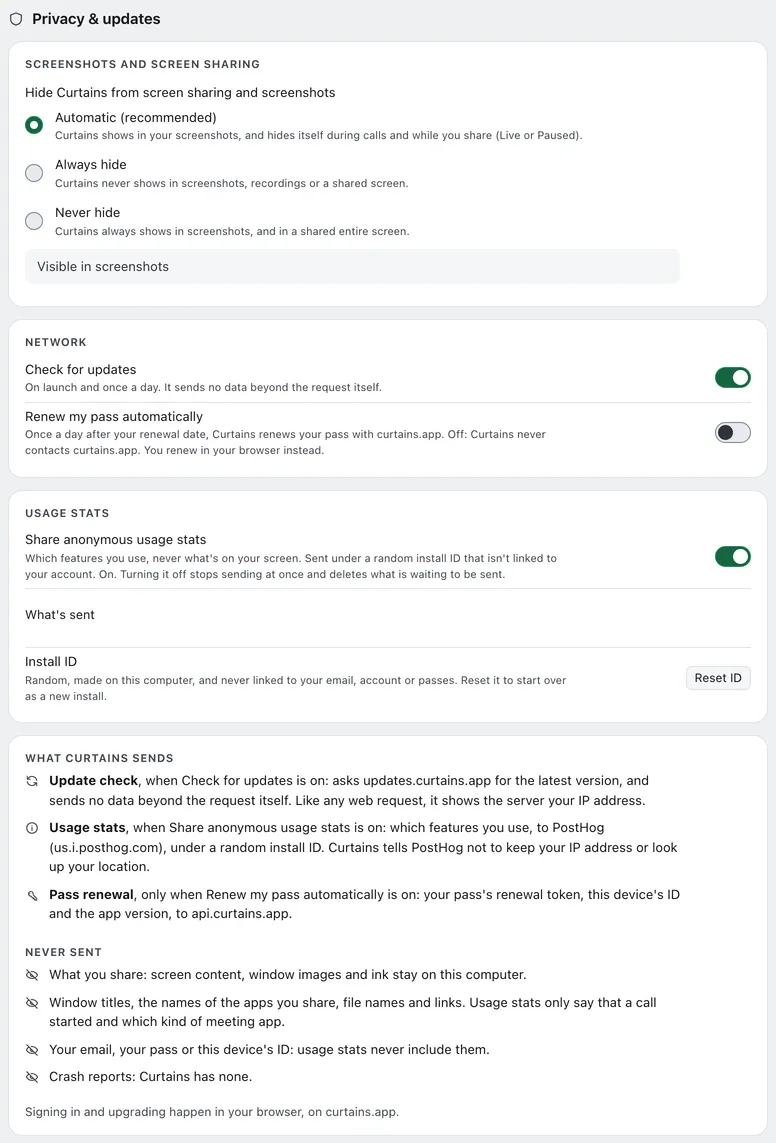
| Setting | Default | What it does |
|---|---|---|
| Hide Curtains from screen sharing and screenshots | Automatic | Automatic (recommended), Always hide or Never hide. Automatic shows Curtains in your screenshots, and hides it during calls and while you share (Live or Paused). Never hide asks first. A status line says what Curtains is doing now. |
| Allow screenshots for 5 minutes | Not a setting | Appears only while Curtains is hidden. Click Allow for 5 minutes, or Hide again now to end it. |
| Check for updates | On | On launch and once a day. It sends no data beyond the request itself. |
| Renew my pass automatically | Off | Once a day after your renewal date, Curtains renews your pass with curtains.app. Only for yearly passes. Off, Curtains never contacts curtains.app. |
| Share anonymous usage stats | Unanswered until the first-run notice | Which features you use, never what’s on your screen. Outside the EU, the UK and Switzerland, the notice starts it on. Inside them, it starts off. |
| What’s sent | Not a setting | The list of every event Curtains can send. |
| Install ID | Random | Made on your Mac, never linked to your email or account. Reset ID makes a new one. |
The What Curtains sends card at the bottom summarizes what leaves your Mac and what never does.
See Screenshots and screen sharing and Usage stats and privacy.
Not in Settings
Your plan, your pass, Deactivate this device and Check now for updates are on the Account page, which opens from the plan item in the rail. See Plans.
Related
- Keyboard shortcuts: defaults and how to change them.
- Usage stats and privacy: what the network settings control.
- Troubleshooting: when a setting doesn’t seem to apply.