Screenshare multiple apps in one window, finally!
Pick the windows you want to show. Curtains arranges them on one canvas you share once, so you never dig through the share picker mid-call again.
Your app windows go into Curtains, which you share in any meeting app.
Arrow keys move the app. Enter selects it.
Try it: drag the apps
Pick a call, any call
- Zoom
-
 Google Meet
-
 Microsoft Teams
- Slack
- Webex
-
 Discord
Used by our friends at
- Meta
- Microsoft
-

-

We got tired of the ol’ screenshare dance
Every switch means stopping the share and starting over, and everyone on the call waits through it.
Illustration: without Curtains, the viewer’s tile cuts from Sam’s slide deck to “Sam stopped sharing”, then a share picker where the cursor hovers the whole screen and the wrong window before choosing the spreadsheet and pressing Share, and then the same again to get back to the deck. With Curtains, both windows sit side by side on one live canvas, and clicking between them never interrupts the share.
Without Curtains
- Every switch stops the share.
- Everyone waits while you pick again.
- Then the wrong window, or the whole desktop.
With Curtains
- One share from start to finish.
- Click between windows; nothing interrupts.
- Only the windows you picked, nothing else.
So we built the sickest screensharing tool ever
Google Meet could never
Set it up before anyone sees it
Picking a window opens a private draft. Nothing is shared until you Go Live.
-
A private draft
Arrange windows and blur what’s private. Only you see it.
-
Go Live when it’s ready
Viewers see a “Starting soon” card, then the finished canvas.
-
Screen combos
Save the windows, layout and blur. One click brings it all back.
Drawing: in a private draft the presenter blurs part of a window, then clicks Go Live, and viewers go from a Starting soon card to the finished canvas.
Change anything without re-sharing
Your meeting app shares one window, Curtains Presenter. Viewers install nothing.
-
Add and remove windows
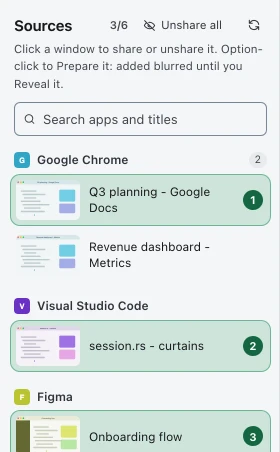
Click a window in Sources to share it. The share never stops.
-
Focus
Make one window fill the canvas, then snap back to your layout.
-
Bring to front
Jump from Studio to the real app. Viewers see no change.
-
Menus and dialogs come along
Dropdowns, context menus and dialogs show on the canvas too.
-
A cursor viewers can follow
Drawn with a ring on each click, hidden outside the shared apps.
Side by side, or one at a time
Switch layouts mid-call, and drag windows on the preview to swap them.
-
Grid
Side by side, 2×2 or 3×2, whichever shows the most of each.
-
Focus and filmstrip
One app takes most of the canvas, the others wait below.
-
Follow
The app you click into fills the canvas, the rest become tiles.
-
Freeform
Drag and resize each app yourself. Edges snap to a grid.
-
Fit all windows
Resizes the real apps to match their spots on the canvas.
Point, blur, highlight, draw, LASER BEAMS
Every shared window gets a small toolbar underneath it.
-
Pen, highlighter, arrow and laser
Six colors. Ink fades on its own, or stays until you clear it.
-
Blur regions
Box out part of a window, or all of it, before viewers see it.
-
Prepare
Option-click a window to add it blurred, reveal it when you’re ready.
-
On the preview too
The same tools work on Studio’s live preview.
Run it from the app you’re presenting
You never have to switch to Studio in the middle of a call.
-
Keyboard shortcuts
Work from any app, and every one is yours to change.
-
The floating remote
Pause or go Live, change layout, draw and blur from a small palette viewers never see.
-
The menu bar
Go Live or Pause and see the call status without opening Studio.
-
Outlines on your desktop
A thin outline and a tab mark each shared window, just for you.
-
Ready when the call starts
Curtains Presenter opens blank at launch and waits in Zoom, Meet, Teams or Slack.
Default shortcuts
- Live or Paused
- Control Option P
- Next layout
- Control Option ]
- Focus
- Control Option F
- Window 1 to 6
- Control Option 1–6
- Pick windows
- Control Option S
- Undo ink
- Control Option Z
- Remote
- Control Option R
Private by default
What you don’t mean to share stays off the canvas.
-
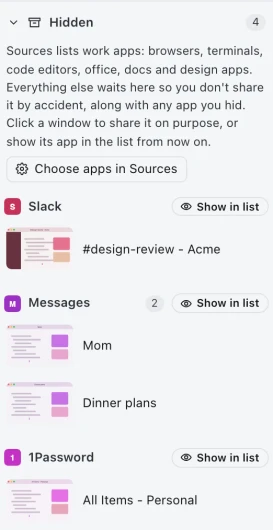
Only work apps in Sources
Mail, chat, notes and password managers wait in Hidden, on every plan.
-
Hide any app
Take any app out of the list by hand, on every plan.
-
Curtains stays out of the share
Studio, the remote and the toolbars never show up for viewers.
-
Window titles stay private
Viewers don’t see window titles unless you turn them on, and never on a blurred or covered window.
-
Nothing recorded or uploaded
Curtains never records or sends what’s on your screen.
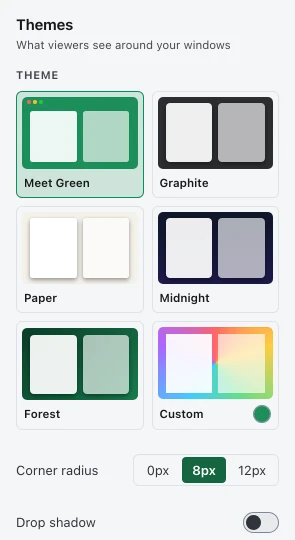
Make it look like yours
Pick what viewers see around your windows.
-
Themes
Meet Green, Graphite, Paper, Midnight, Forest or your own color.
-
Corners, shadow and padding
Round the window corners, add a shadow, give them room.
-
Your own background Pro
Put your image behind your windows, or your logo on top.
-
The badge Pro
“Shared with Curtains” sits in a corner. Pro can turn it off.
Death to
Every plan has every layout, every tool and every update. Non-work apps stay out of Sources by default. Pro shares up to 6 apps at once, adds custom backgrounds and overlays and lets you turn the badge off.
Free
For the occasional share
- 2 apps per canvas
- Every layout and presenter tool
- Non-work apps hidden from Sources by default
- Hide any app by hand
- The “Shared with Curtains” badge stays on
- Every update
Pro
For one presenter on up to 3 devices
- Up to 6 apps per canvas
- Turn the badge off
- Custom backgrounds and overlays
- Non-work apps hidden from Sources by default
- Every layout and presenter tool
- Every update
Lifetime
Personal lifetime license
- Everything in Pro
- Every future update
- One person, up to 3 devices
- Nothing to renew
Pro for teams $3.75 per seat per month, billed annually, less from 10 seats
See team pricingEvery new install starts with 14 days of Pro, no account needed. After that, Curtains stays free with 2 apps per canvas.
By continuing you agree to the Terms, including that Curtains may show your organization's name and logo as a customer.
Compare plansQuestions before your next call
Yes, if it can share a single window. In Zoom, Google Meet in your browser, Microsoft Teams, Slack huddles or Webex, share the window named Curtains Presenter. No plugins, and the people watching don’t need anything.
No. Curtains Studio, the outlines and toolbars around your shared windows, and the floating remote are all left out of screen sharing. Viewers see only Curtains Presenter.
Yes. Free has every layout and presenter tool for up to 2 apps at a time, with the “Shared with Curtains” badge on, and Sources shows only work apps by default, and you can hide any app by hand. Pro shares up to 6 apps, lets you turn the badge off and adds custom backgrounds and overlays.
No video, audio or screen content. Your windows are composited in memory while you share, and frames are never recorded or uploaded. Window titles stay off the canvas unless you turn them on.
Curtains does send anonymous usage stats: which features you use, never what’s on your screen, your window titles or the apps you share. They carry a random ID that isn’t linked to your email or account. They’re on by default, except in the EU, the UK and Switzerland, where they stay off unless you say yes. Turn them off anytime in Settings > Privacy & updates. The only other things Curtains goes online for are update checks, which you can turn off too, and renewing your plan if you’ve asked it to.
Windows 10 draws it around any window being captured. Only you see it. Windows 11 lets Curtains turn it off.
Stop the screenshare dance
Your next call can start with the right windows already in the share.
Requirements and shortcuts