Bring to front
Jump to the real app behind a shared window without changing your canvas.
On this page
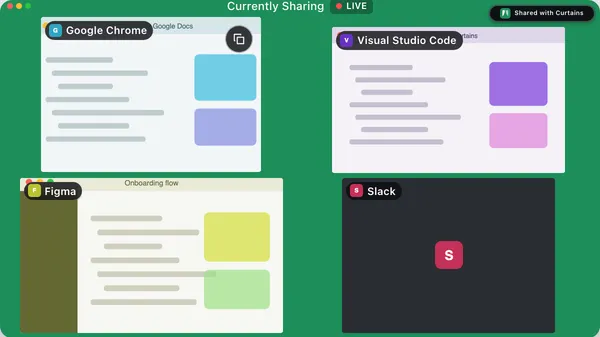
Bring to front switches to the app behind a shared window and raises that exact window, so you can work in it without touching Studio.
It changes nothing on the canvas. It doesn’t change the layout or the focus, and it never moves or resizes the window. When Studio goes behind, the floating remote appears as usual, so you can still control the session.
Where to find it
- On the preview: hover a window, or Tab to it, and click the button at its top right. The button sits under the window’s status or Focused pill, when it has one.
- In the Order list: click the Bring to front button on the window’s row.
- In Sources: shared and picked windows have the same button on their rows.
- On the window itself: click its tab and choose Bring to front, the first item in the menu.
- In the menu bar: open Curtains’ menu bar menu and choose Bring to front. A submenu lists each shared window by app and title, in canvas order.
- From the keyboard: press F on a window on the preview, or on its row in the Order list.
Allow Accessibility for the exact window
Without the Accessibility permission, Bring to front switches to the app, and the app shows its own front window, which may not be the one you meant. With it, Curtains finds the exact window, restores it if it was minimized, and raises it.
Curtains never shows the system prompt for this. The first time it can only bring the app forward, Studio explains: Allow Accessibility to bring the exact window forward. Click Open Accessibility settings, switch Curtains on in Privacy & Security › Accessibility, and try again. From the menu bar menu, a message says the same.
A window on another Space works too: activating its app takes you to that Space.
In Follow
In the Follow layout, a window you raise becomes the large window, the same as any shared window you click.
Related
- Fit and resize windows: also uses Accessibility.
- Floating remote and menu bar
- Layouts
- Install and permissions