Quickstart
Download Curtains, allow Screen Recording, pick your windows and share them in your meeting as one window.
On this page
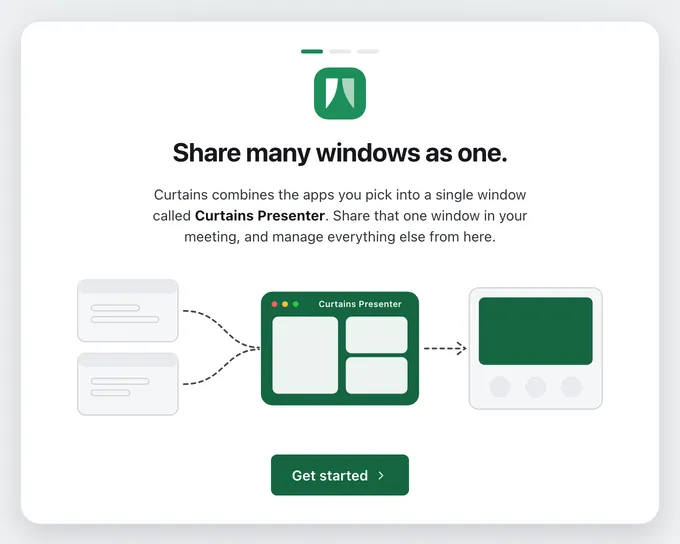
Curtains puts the windows you pick on one canvas, in a window called Curtains Presenter. Your meeting app shares that one window. From then on you add, remove and arrange windows in Curtains Studio, and the meeting keeps sharing the same window, so you never go back to its share picker mid-call.
-
Download and open Curtains
Download Curtains for macOS 13 or later. There’s one version for Apple silicon and one for Intel; see which one you need. Open the disk image, drag Curtains into your Applications folder, then open it from there.
The first time it opens, Curtains says what it does and, outside the EU, the UK and Switzerland, tells you it sends anonymous usage stats, with a switch to turn them off. In the EU, the UK and Switzerland it asks first, and nothing is sent unless you say yes. Either way you can change it later in Settings.
-
Allow Screen Recording
macOS asks before any app can see other windows. Click Allow Screen Recording, then switch Curtains on in System Settings › Privacy & Security › Screen Recording.
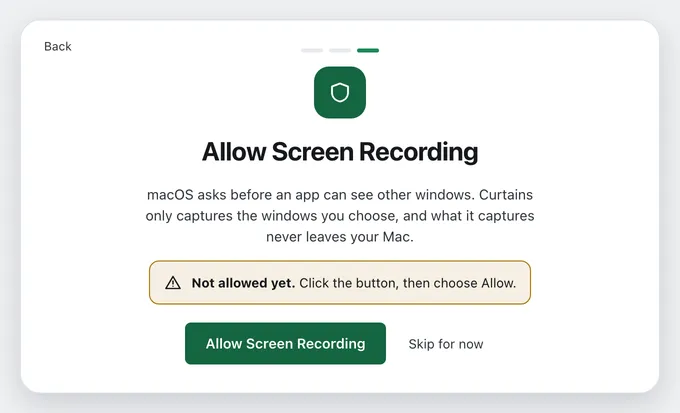
macOS may then say Curtains needs to quit and reopen. That’s expected: click Restart Curtains, and the permission takes effect. On macOS 15 and later the list is called Screen & System Audio Recording.
-
Pick windows to start a draft
Click Choose windows to share. Studio opens, with your open windows in Sources on the left, grouped by app.
Click a window to pick it. Your first pick starts a draft: the window shows on the stage straight away, but nothing is shared yet. The stage bar says Not shared yet, and only you see this preview. Keep clicking to add windows, in the order you want them shown; click a picked window again to take it off.
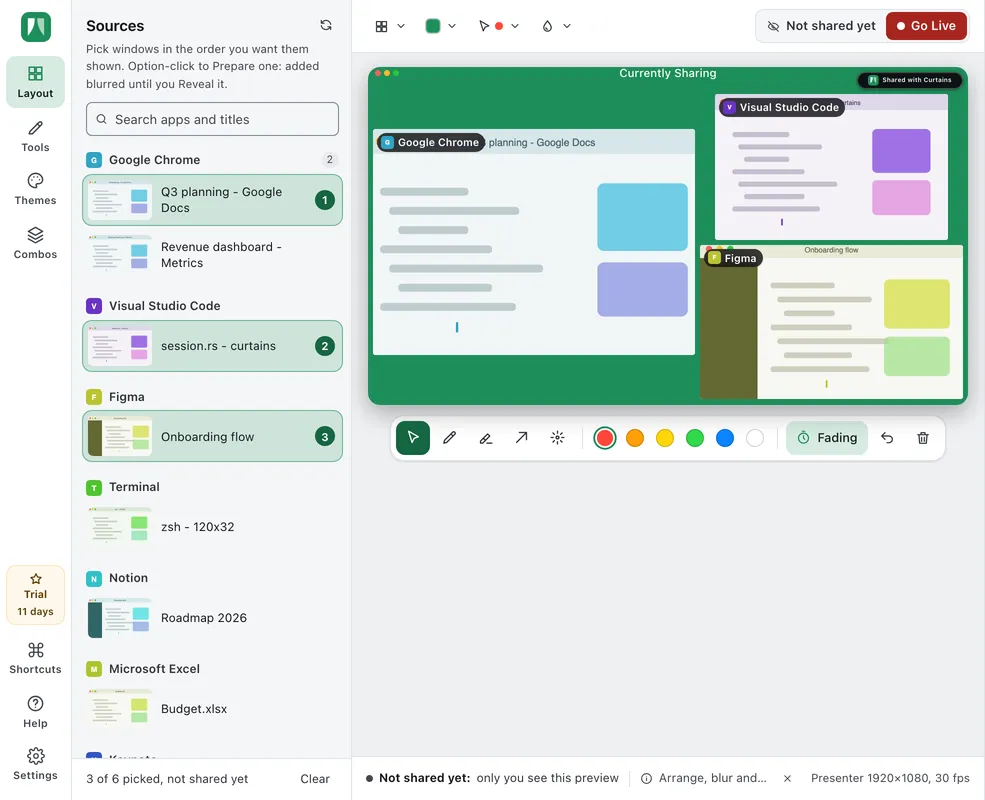
Free shares up to two windows at a time. Pro, Lifetime, Pro for teams and the 14-day trial share up to six. See Plans.
-
Arrange your windows
The Layout panel on the right sets how the windows are arranged (if it’s folded away, click Layout in the rail on the left edge): Grid tiles them all, Focus makes one large with the rest in a filmstrip, Follow shows the window you’re using with the others in a strip on top, and Free lets you drag and resize them on the preview.
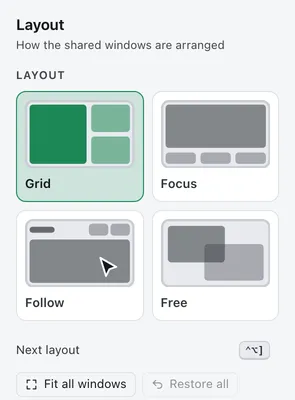
In Grid, drag a window on the preview onto another to swap them. Double-click a window to Focus it: it becomes the big one, and in Grid, Follow and Free it fills the canvas until you double-click it again. You can also draw, blur and pick a theme now: whatever you set up is exactly what viewers see when you go Live.
-
Go Live
When it looks right, click Go Live at the top right of the stage. Curtains Presenter, which opens blank behind your windows when Curtains starts, fills with your windows and is Live, set up as you left it.
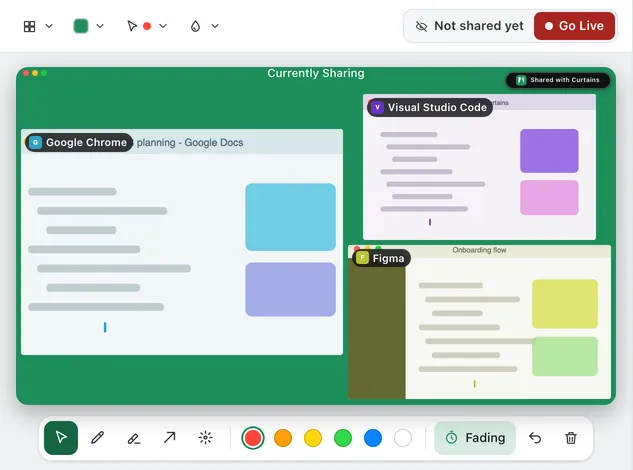
Curtains Presenter opens behind Studio. Leave it there and don’t minimize it: meeting apps can share a window that’s covered, but not one that’s minimized.
The stage bar now shows Live and Paused, with End. While Paused, viewers see a holding card instead of your windows; End makes Curtains Presenter blank again instead of closing it, so your meeting app keeps sharing the same window.
-
Share Curtains Presenter in your meeting
In your meeting app, share a window, not your entire screen, and pick Curtains Presenter:
- Google Meet: Present now › A window › Curtains Presenter
- Zoom and Teams: Share › Window › Curtains Presenter
- Slack huddle: Share screen › Window › Curtains Presenter
The line under Studio’s preview keeps the reminder: share the window named Curtains Presenter, which can stay behind Studio.
That’s it. From now on, change what viewers see from Studio: pick or unpick windows in Sources, switch layouts, draw, blur, or pause. The meeting keeps sharing the same window.
Next steps
- Studio tour: every part of Studio, and where to find it.
- Floating remote and menu bar: control the session while your meeting is in front.
- Layouts and Focus: arrange the canvas while you present.
- Draw on your windows and Blur and hide: point things out, and keep private things private.
- Keyboard shortcuts: go Live, pause and switch layouts from any app.