Rearrange windows
Drag windows on the preview, reorder them in the Order list, or move them with the keyboard.
On this page
You decide which window goes where by dragging on Studio’s preview, by reordering the Order list, or by using the keyboard, and viewers see each change at once.
Drag on the preview
Pick the Move tool (the arrow under the preview), then drag a window onto another one. While you drag, the window’s old place is dimmed, the target gets a ring, a lifted copy follows the pointer, and a hint says what the drop will do. Press Esc to cancel.
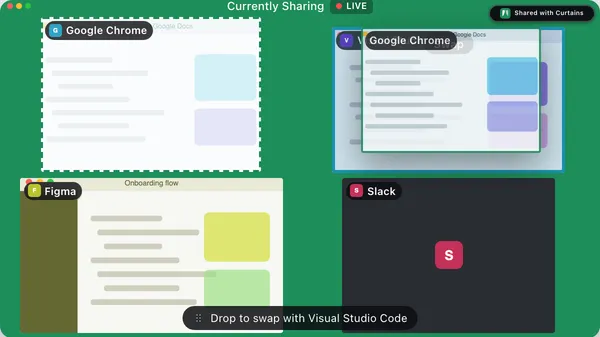
What a drop does depends on the layout:
- Grid: the two windows swap places.
- Focus: drop a filmstrip thumbnail on the large window and it becomes the large one, while the old large window takes its slot in the filmstrip. Drop a thumbnail on another thumbnail and it moves to that slot, and the ones between shift along.
- Follow: the same as Focus, except the large window is the followed one. It stays followed until you click a different shared window.
- Free: windows aren’t dropped on each other. You move and resize them instead; see below.
A press only becomes a drag after a few pixels, so a click or a double-click still works. Dragging is off while a window fills the canvas, while you draw, and while Blur mode is on.
Reorder in the Order list
The Order list in the Layout panel shows your windows in canvas order. Drag a row by its grip to move it, or press Option with ↑ or ↓. The preview shows where the row will land as you drag.
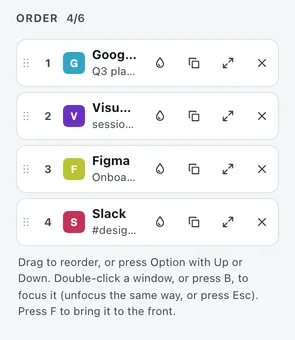
The order is the order on the canvas: where windows sit in Grid, the order of the filmstrip, and the order of the strip in Follow. New windows join at the end.
Move windows with the keyboard
You don’t need a pointer. Press Tab to reach a window on the preview; it gets a focus ring.
- Option with an arrow key drops the window on its nearest neighbor in that direction, the same as a drag. The new order is announced.
- Enter or Space makes the window the large one in Focus and Follow.
- In the Order list, Option with ↑ or ↓ moves the row.
Place windows freely
In Free, drag a window to move it and pull its handles to resize it. Windows snap to the canvas edges, to other windows and to a 12-column grid while you drag, and thin guide lines show what they snapped to. Hold Option to place a window anywhere, with no snapping.
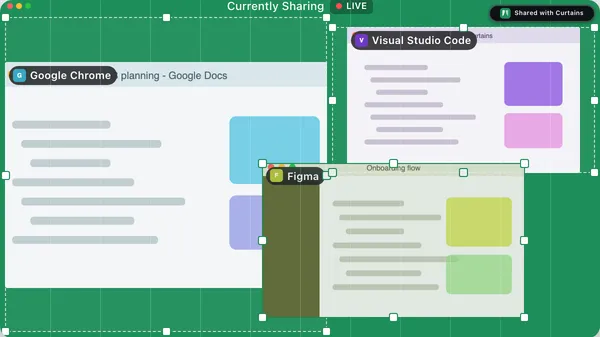
With the keyboard, Tab to a window, then press an arrow key to move it one grid column, or hold Option for an eighth of a column. Hold Shift with an arrow key to resize it.
Related
- Layouts: what each layout does with the order.
- Focus: fill the canvas with one window.
- Drafts and Go Live: arrange everything before anyone sees it.
- Keyboard shortcuts