Fit and resize windows
Make real windows match their space on the canvas with Fit to cell, Sharpest, Fit all windows and automatic fitting.
On this page
Curtains can resize your real app windows to fit their spaces on the canvas, so viewers see sharper text and no empty bars.
Why resize
A window whose shape doesn’t match its space is shown with bars around it, and a large window is scaled down until its text gets small. Resizing the real window to suit its space fixes both. Curtains moves and resizes the actual window on your desktop, so you’ll see it change.
Resize one window
Click the window size button on a window’s row in the Order list (the Layout panel), or click the tab on the window and open Window size. There are three choices.
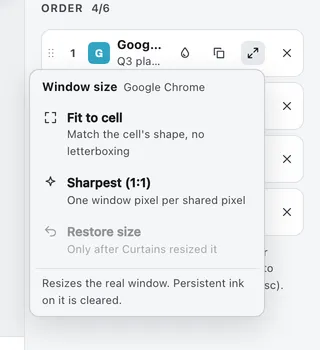
- Fit to cell gives the window the shape of its space as laid out right now, at about the same size on your screen. It stays centered where it was, on the same display.
- Sharpest (1:1) sizes the window so one window pixel is one shared pixel, so nothing is scaled and text is as crisp as it can be. If that size doesn’t fit your screen, you get the closest size that does, and a message says it isn’t exactly 1:1.
- Restore size puts the window back to the size and position it had before Curtains first resized it. It’s available once Curtains has resized that window.
Some apps refuse sizes. Curtains reads back what the app allowed, makes one more attempt, and a message says how close it got.
Resizing a window clears persistent ink drawn on it, because its content has reflowed.
Fit all windows
In the Layout panel, under the layout cards, click Fit all windows to fit every shared window at once. Restore all puts back every window Curtains resized, and stays dimmed until Curtains has resized something. The same two buttons are in the layout menu in the stage bar, and both work in a draft.
Windows that can’t be resized, such as a minimized window or one in full screen, are skipped. One message names them and says why, for example “Skipped Notes (minimized) and Excel (full screen).” A window that already has its space’s shape is left alone.
The sizes are worked out once, from the layout at the moment you click. A window’s new shape never triggers another fit by itself.
Fit automatically
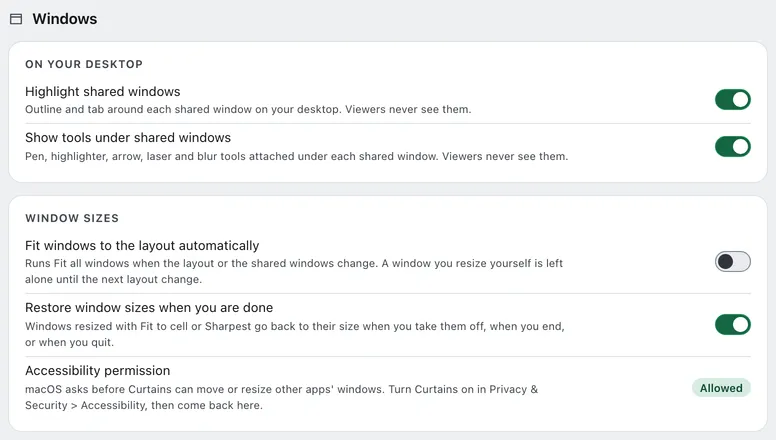
To fit after every change, turn on Fit windows to the layout automatically in Settings › Windows. It’s off by default. Curtains asks you to confirm first, because it will resize and move your shared windows whenever the layout changes; click Turn on. After your first manual Fit all windows, the Layout panel also offers it once, as Do this automatically.
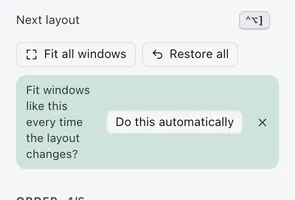
Curtains waits until the changes stop, about a third of a second, so a burst of changes resizes each window once. It runs after a new layout, a window added, removed or reordered, a Focus or Unfocus, a Free window moved, and when a draft or session starts.
It never fights you. A window you resized yourself, or sized with Restore size, Restore all or Sharpest, is left alone until the next layout change. Automatic fitting stays quiet unless a window couldn’t be fitted.
Give back the sizes
Restore window sizes when you are done in Settings › Windows is on by default. With it on, a window goes back to its original size when you take it off the canvas, when you end the session, and when you quit Curtains.
Allow Accessibility
On a Mac, moving and resizing other apps’ windows needs the Accessibility permission. Curtains never asks at launch. The first time you use a resize action, macOS shows its prompt. If you decline, Studio shows a note in the Layout panel: Allow Accessibility to resize windows.
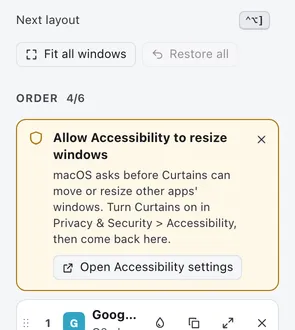
Click Open Accessibility settings, switch Curtains on in Privacy & Security › Accessibility, then return to Studio. Studio checks again when it comes to the front. Settings › Windows shows the permission’s current state.
The automatic run never shows the system prompt; it shows the note instead.
Related
- Layouts: the spaces windows are fitted to.
- Bring to front: also uses Accessibility.
- Install and permissions
- Settings