Activate a device
Activate Curtains on a Mac at curtains.app/activate after you buy.
On this page
After you buy a plan, you activate Curtains on each Mac from Studio and your browser, and Curtains then checks your plan on the Mac itself.
Before you start
You need a Pro, Lifetime or Pro for teams plan on your account. Curtains already works on Free, and during the 14-day trial, without any of this.
Activation covers one device at a time, up to three per person. See Devices.
Activate this Mac
-
Open Account in Studio
Click the plan item at the bottom of Studio’s left rail. It reads Trial, Free, Pro, Lifetime, Team or Renew. The Account page opens.

-
Click Sign in
Click Sign in. If you haven’t bought a plan yet, Upgrade opens the same page. Your browser opens curtains.app/activate. The link carries your Mac’s name and a one-time code in its fragment, so neither reaches the server’s logs.
-
Sign in on the website
If you’re not signed in, enter your email address. curtains.app emails you a link. There are no passwords. The link works once and expires in 15 minutes. It brings you back to the activation page.
-
Click Activate this Mac
The page shows your account, your plan and your Mac’s name. Click Activate this Mac. If you’re on a PC, it says Activate this PC.
-
Let your browser open Curtains
Your browser may ask whether to open Curtains. Allow it. Curtains comes to the front and shows your plan. You’re done.
You do this once per Mac. Curtains keeps the pass in the macOS keychain, and checks it without going online.
If Curtains doesn’t open
Some browsers block the link back to the app. The page then shows your pass as text, with a Copy pass button.
-
Copy the pass
Click Copy pass on the page. You can also click Open Curtains again to try the link once more.
-
Paste it in Studio
Open the Account page in Studio and click Paste pass. Paste the pass into the box, then click Activate.
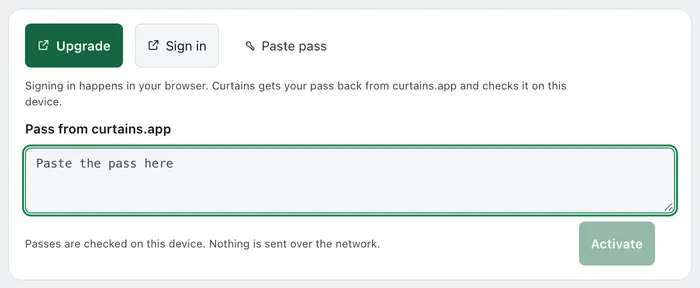
The pass is checked on your Mac. Nothing is sent over the network when you paste it.
When the page says something else
- You’re on Free. The account you signed in with has no paid plan, so there is nothing to activate. Click See plans. If you just bought one, click I just bought a plan, check again. Make sure you signed in with the email you used to buy.
- This account has all its devices. Remove a device on the page to make room, then activate this one. See Devices.
- This plan is no longer active. The purchase was refunded or has ended, so it can’t activate more devices. Devices that are already activated keep working until their pass runs out.
- Start from Curtains. You opened the page without the details Curtains sends. Go back to Studio’s Account page and click Sign in.
The code Curtains sends works once and lasts 15 minutes. If it has expired, start again from Studio.
Renew
When a Pro or Pro for teams pass needs renewing, the Account page shows Renew. It uses the same steps, and the page says Renew this Mac. If your browser is still signed in, it’s one click. See Billing and renewals.
Related
- Devices: the limit of three, and removing a device.
- Plans: what each plan includes.
- Troubleshooting: activation problems and error messages.