Troubleshooting
Fixes for common problems: missing windows, a black window, permissions and meeting apps.
On this page
Find your problem below. Each fix starts with the likeliest cause.
Curtains Presenter isn’t in the share list
Work down this list.
- You’re still in a draft. A draft is Studio’s private stage, and it has no Presenter yet. Click Go Live. See Drafts and Go Live.
- You ended the session. End closes Curtains Presenter. Go Live again to open it.
- You closed the standby Presenter during a call. Curtains doesn’t reopen it for that call. Go Live to open it.
- Your meeting app’s picker was already open. Close it and open it again. It lists windows when it opens.
- You chose Entire screen. Choose a window instead, and pick Curtains Presenter. See Sharing in your meeting app.
- The Presenter is minimized. Meeting apps can share a covered window, but not a minimized one. Restore it from the right end of the Dock.
- Your meeting is full screen in its own Space. Curtains Presenter opens on your regular desktop and doesn’t follow it. Leave full screen, or Go Live from Studio, then pick it.
- Your meeting app can’t see other windows. On macOS, the meeting app needs Screen Recording permission too. Check System Settings › Privacy & Security › Screen Recording.
If a call is on and you want it ready in advance, check Settings › Calls › Open Curtains Presenter when a call starts. See Call detection.
Screen Recording permission
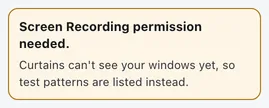
Curtains can’t see your windows until macOS allows it. Studio’s Sources list then shows a banner, “Screen Recording permission needed,” and lists test patterns instead of your windows.
-
Ask for access
Click Allow access. macOS shows its prompt only once. Choose Allow in it.
-
Switch Curtains on
If you dismissed the prompt, click Open System Settings in the banner. Switch Curtains on in Privacy & Security › Screen Recording. On macOS 15 and later the list is called Screen & System Audio Recording.
-
Restart Curtains
macOS needs Curtains to reopen once for the permission to take effect. Click Restart Curtains (or Restart now).
If the switch is on but Curtains still can’t see windows, switch it off and on again, then restart Curtains.
On newer macOS versions, macOS may ask you from time to time to confirm that an app can still record your screen. If it takes the permission away mid-session, Studio says “Screen Recording permission was lost” and names the window it can’t capture. Allow it again in System Settings and restart Curtains.
Windows doesn’t need this permission.
Accessibility
Resizing other apps’ windows and Bring to front need a second permission, Accessibility. Without it, Curtains still shares your windows, but can’t resize them, and Bring to front switches to the app without always picking that window. Open Settings › Windows and click Open Accessibility settings, then switch Curtains on in Privacy & Security › Accessibility. Come back to Studio and it picks up the change.
A window is black or frozen
- Black. The window is probably protected: video from streaming services, and some password fields, render black. macOS gives Curtains what it shows, and Curtains has no way around it. Show that content in another window, or in a screen share outside Curtains.
- Dimmed, with a “Minimized” badge. The window is minimized. Viewers see its last frame, dimmed. Restore the window and it goes live again.
- Gone from the canvas. The window was closed, or its app quit. Curtains removes it and says so. Pick it again in Sources.
- Black or empty after a permission change. See Screen Recording permission above.
- No preview in Sources. Sources lists work apps by default, and windows of other apps have no preview until you open the Hidden section. See Apps in Sources.
- Blurred. A window you added with Prepare joins blurred, with a Reveal button. See Blur and hide.
A window covered by other windows stays live, and so does one you move to another display.
A window won’t resize
Fit all windows and Fit to cell leave some windows as they are, and say which, like “Couldn’t fit Notes (minimized) to the layout.” The reasons are:
| Message | What to do |
|---|---|
| minimized | Restore the window. |
| not on screen | Bring the window onto a display. |
| full screen | Leave full screen. |
| runs as administrator | Windows only. Curtains can’t resize a window that runs with higher rights. |
| window closed | Pick the window again. |
| you sized it | Automatic fit leaves a window you resized yourself alone until the next layout change. Run Fit all windows to fit it. |
| needs Accessibility permission | Allow Accessibility, as above. |
| the app refused | Some apps limit their window’s size. Curtains can’t change that. |
| test pattern | Test patterns have no real window. |
Curtains Presenter is minimized
Meeting apps can share a window that is covered, but not one that is minimized, so viewers lose your windows when the Presenter is minimized. Restore it from the right end of the Dock. Curtains Presenter can stay behind Studio. Just don’t minimize it.
Viewers can see Studio
Open Settings › Privacy & updates. If the choice is Never hide, switch to Automatic or Always hide. If you’re sharing your entire screen, share the window Curtains Presenter instead. See Screenshots and screen sharing.
The floating remote doesn’t show
The remote appears only while a session is running and Studio isn’t in front. It doesn’t show in a draft. Check these:
- Settings › Calls › Show floating remote when Studio isn’t in front is on.
- You haven’t chosen Hide remote. Press Control Option R, or choose Show remote in the menu bar menu, to bring it back.
See Floating remote and menu bar.
A shortcut doesn’t work
If macOS or another app has already taken a shortcut, Curtains shows “Some hotkeys are unavailable” and names it. Choose a different shortcut in Settings › Shortcuts. See Keyboard shortcuts.
Update errors
Open the Account page and look under Updates. Check now asks the server for the latest version. If one is found, click Install and restart.
| Message | What it means |
|---|---|
| Couldn’t reach the update server. Try again later. | Your Mac couldn’t reach updates.curtains.app. Check your connection, and any firewall or VPN, then click Check now. |
| Couldn’t download the update. Try again later. | The download failed partway. Click Check now and try again. |
| The update didn’t pass its signature check, so it was not installed. Try again later. | Curtains only installs updates signed with its own update key. It refused this one. Try again later, or download Curtains again from the download page. |
If the page says “Automatic update checks are off”, turn Check for updates back on in Settings › Privacy & updates. Check now works either way.
Activation problems
First check which Mac and which email you used. Then look for your message.
- Nothing opens after Sign in. Your browser may have blocked the link back to Curtains. On the activation page, click Copy pass. In Studio’s Account page, click Paste pass, paste, and click Activate. See Activate a device.
- “Start from Curtains” on the website. You opened the page without the details Curtains sends. Click Sign in on Studio’s Account page.
- The code expired. The code Curtains sends works once and lasts 15 minutes. Click Sign in again.
- “You’re on Free” on the website. The email you signed in with has no paid plan. Sign in with the email you bought with, or click I just bought a plan, check again.
- “This account has all its devices.” Remove a device on the page, then activate again. See Devices.
- “This plan is no longer active.” The purchase was refunded or has ended.
- “This pass is for another device.” You pasted a pass made for a different Mac. Click Sign in from Curtains on this Mac.
- “That isn’t a Curtains pass.” Copy the whole pass from curtains.app and try again.
- “This pass has expired. Renew it on curtains.app.” Click Renew on the Account page. See Billing and renewals.
- “Your computer’s clock is behind.” Set the right date and time. Curtains treats a pass as expired while the clock is more than a day behind the latest time it has seen.
- “This pass needs a newer version of Curtains.” Update Curtains, then try again.
- “The system keychain is unavailable.” Your pass works, but Curtains can’t save it in the macOS keychain, so it would be gone when Curtains quits. Click Store in settings folder to keep it as a file there instead. Anyone with access to your user account could read that file.
If a plan still shows as Free after you fix these, contact support.
Related
- Install and permissions: the first-run steps.
- Sharing in your meeting app: where to find Curtains Presenter.
- FAQ: short answers.