Apps in Sources
Sources lists work apps by default. Everything else waits in Hidden, and you choose what shows.
On this page
Sources shows only work apps by default. Mail, chat, notes, files and password managers wait in a collapsed section at the bottom, so they’re never one stray click away. This is free on every plan.
Moving an app out of Sources only takes it out of the list. Nothing is shared or blurred by it. To hide a window’s contents from viewers, see Blur and hide.
What counts as work
Curtains shows these apps in the main list:
- Browsers: Safari, Chrome, Arc, Firefox, Edge, Brave and others.
- Terminals: Terminal, iTerm2, Warp, Ghostty, Windows Terminal and others.
- Code editors and developer tools: VS Code, Cursor, Zed, Xcode, JetBrains IDEs, Visual Studio, Postman and others.
- Office and docs: Keynote, Pages, Numbers, Word, Excel, PowerPoint, LibreOffice and Acrobat.
- Design: Figma, Sketch, Adobe apps, Affinity, Canva, Miro, Blender and others.
- Productivity: Notion, Obsidian, Linear, Airtable, Craft and Jira.
Curtains matches the app, never the window title. A window named “Notes” in a chat app stays hidden, and a password manager can’t slip in under a different title. The full list is in Settings › Apps in Sources, under Which apps count as work.
Every other app is hidden by default. That includes Mail, Notes, Calendar, Finder, Messages, Slack, Teams, Zoom, Discord, Photos, Music, games and every password manager. Some of these can be work, but they’re the classic way to overshare by accident.
Where hidden apps go
Windows of hidden apps leave the main list and wait in Hidden, a section at the bottom of Sources. It starts collapsed and shows only a count. If some of those windows are already on the canvas, it also says how many are shared, or picked in a draft.
While Hidden is collapsed, Curtains shows no titles and takes no previews of those windows. Expand it to see them; previews start then and stop when you collapse it again.
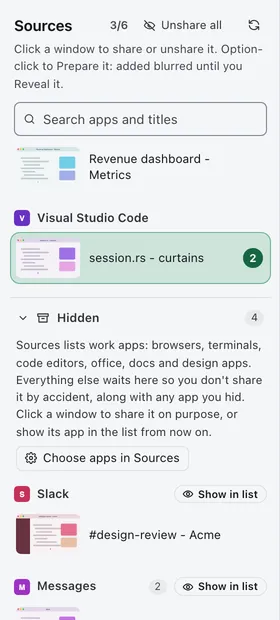
You can still share a hidden window on purpose: expand Hidden and click it, like any other row. In a draft that starts the draft as usual.
Show an app in the list
Expand Hidden and click Show in list next to the app. It moves to the main list from then on, and a message says so, with Undo.
Hide an app
You can hide any app, work apps included.
- Hover a window in Sources, or Tab to it, and click More (the ⋯ button). You can also right-click the row.
- Choose Hide Google Chrome from this list, with the app’s own name.
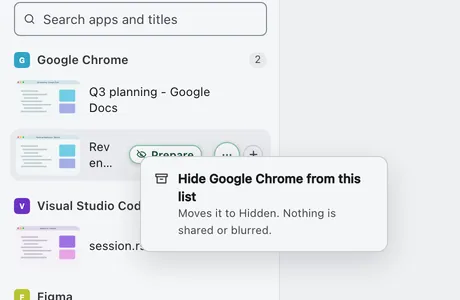
All of that app’s windows move to Hidden. A message follows, “Google Chrome hidden from Sources.”, with Undo.
Your choices win
What you pick always beats the default. An app you hide stays hidden, and an app you show stays shown. Curtains only remembers a choice that differs from the default, so Undo leaves nothing behind.
Settings › Apps in Sources
Settings › Apps in Sources has three cards. Choose apps in Sources in the Hidden section opens it.
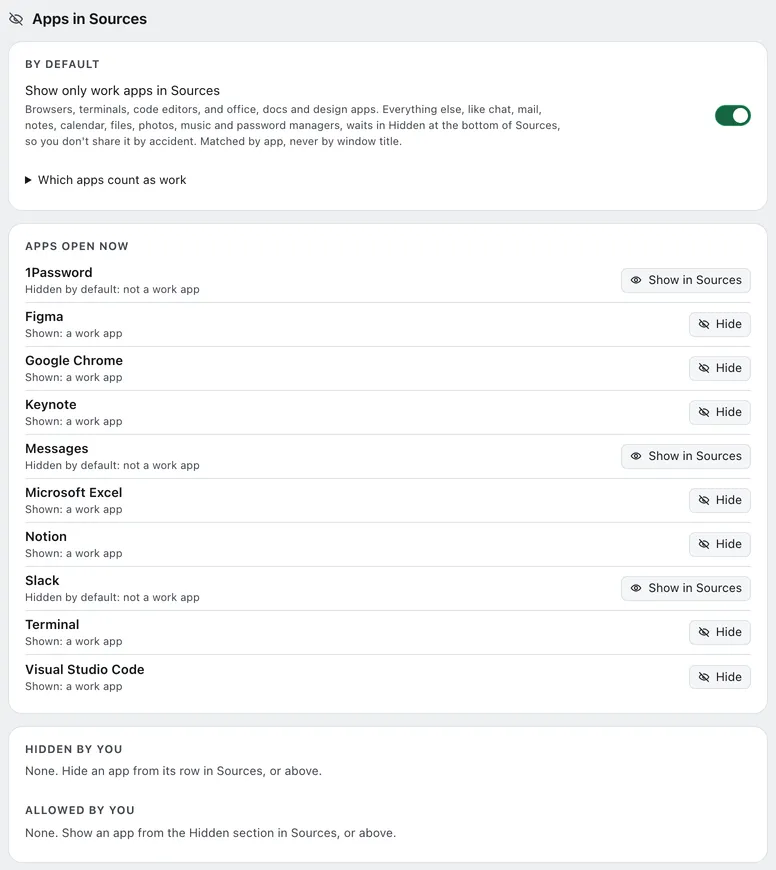
- By default has the Show only work apps in Sources switch, on by default, and the Which apps count as work list. Turn the switch off and only the apps you hid by hand are hidden.
- Apps open now lists each app with a window open, whether it’s shown or hidden and why, with Show in Sources or Hide. Reset puts an app you changed back to the default.
- Your choices lists Hidden by you and Allowed by you. Reset beside an entry puts it back to the default.
The notice when a share ends
When a share ends and Curtains hid an app you had open, Studio shows a message: “We hide applications by default to prevent accidental oversharing. Change which windows are available in Settings”. Click Change in Settings to open Apps in Sources, or Don’t show again.
You see it at most once a day. It stops for good after Don’t show again, or once you’ve opened Apps in Sources. You don’t see it after a draft you discarded, or with Show only work apps in Sources off.
Updating from 1.0.3
Your choices carry over. Apps you hid stay hidden, and built-in apps you showed stay shown. If you had turned off hiding password managers and messaging apps, Show only work apps in Sources starts off, so nothing you could see before disappears. Otherwise it starts on.
Combos and hidden apps
A combo that includes a hidden app still starts it.
Related
- Blur and hide: hide part or all of a window you share.
- Combos
- Plans
- Settings