Devices
How many devices a plan covers, and how to move Curtains to a new one.
On this page
Pro and Lifetime cover up to three devices for one person, and on Pro for teams each seat gets up to three.
The limit
- Pro and Lifetime: up to 3 active devices for you.
- Pro for teams: up to 3 active devices for each seat. Every person on the team has their own account and their own three.
- Free: no limit. Free doesn’t need activation.
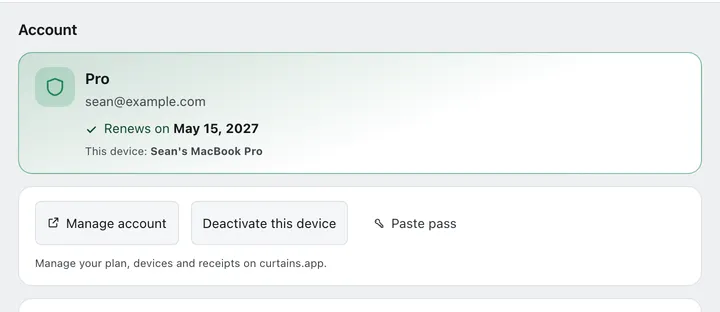
A device is one Mac or PC with Curtains activated on it. Its name is your Mac’s name, as set in macOS. The Account page in Studio shows it as This device.
Activating the same Mac again, after a reinstall for example, doesn’t use another slot.
See your devices
Open curtains.app/account in your browser, or click Manage account on Studio’s Account page. The Devices card lists each device by name, with its last activation date. It also says how many slots you’ve used, like “2 of 3 devices activated”.
Remove a device
Remove a device when you sell a Mac or want its slot back.
-
Open your account
Click Manage account in Studio, or go to curtains.app/account and sign in.
-
Remove it
In Devices, click Remove next to the device. Confirm in the dialog “Remove this device?”.
The slot is free right away. The removed device keeps working until its pass runs out, because Curtains checks passes without going online. After that it is on Free. Automatic renewal stops for it.
Removal limit
Self-service removals are limited to 3 in any rolling 12 months. The page tells you how many are left: “You can remove 2 more devices in the next 12 months.” Once you have used them, it gives the date the next one opens up. If you need a removal sooner, contact support and they can reset it.
Move Curtains to a new Mac
-
Free the old Mac, if you’re at the limit
On the old Mac, click Deactivate this device on Studio’s Account page. Curtains deletes its pass from that Mac and opens your devices page. Your settings, combos and themes stay.
Deactivating on the Mac does not free the slot by itself. Remove the device on the page too.
-
Activate the new Mac
Install Curtains, then follow Activate a device.
If you still have a free slot, you can skip the first step and activate the new Mac straight away.
Related
- Activate a device: connect Curtains on a Mac to your plan.
- Plans: which plans cover how many devices.
- Teams: seats and team members.