Blur and hide
Hide part of a window, a whole window, or add a window hidden, so private things never reach viewers.
On this page
Blur hides what you don’t want viewers to read, on a part of a window or on a whole one, before it leaves your Mac.
How blur works
Curtains blurs in the canvas it builds, before ink and the cursor are added, so nothing sent to your meeting ever contains the hidden pixels. The blur shrinks the area first and then smears it hard enough that text can’t be recovered. You can choose Solid fill instead, which covers the area with a flat color. There is no plain pixelation, because that can be partly reversed.
Your own windows on your desktop are never blurred. Blur only changes what viewers see.
Blur part of a window
A blur region is a rectangle over one window. It’s tied to that window, so it follows the window when you change the layout.
- Open the stage bar’s Blur menu and switch on Blur mode. You can also switch it on in the Tools panel.
- Drag a rectangle over the part of a window you want hidden. Add as many as you like.
- Drag a region to move it. Hover it and click × to remove it.
- Switch Blur mode off to go back to arranging windows.
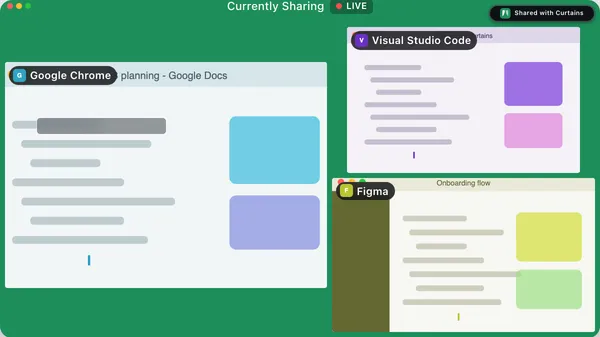
Under Style, or New regions in the Tools panel, choose Blur or Solid fill for the regions you add next.
A region stays fixed to a spot in the window. It doesn’t follow content that scrolls, so check it again after you scroll.
Blur on the real window
You can also place a region without opening Studio. On a shared window’s toolbar, pick the Blur tool and drag a rectangle over the window. The toolbar’s Blur or Solid button sets the style for new regions. Or click the window’s tab and choose Add blur region…, which opens Studio with that window selected and Blur mode on.
On your desktop, each region shows as a hatched outline labeled Hidden from viewers, with an × to delete it. You see through it; viewers don’t.
Blur a whole window
For a window that’s open on something private for a moment, blur all of it:
- In the Order list, click the blur button on its row, Blur whole window.
- In the Tools panel, switch on Blur whole window under that window.
- Click the window’s tab and choose Blur entire window.
- On the floating remote, click Blur. It acts on the shared window in front on your desktop, or the focused window on the canvas.
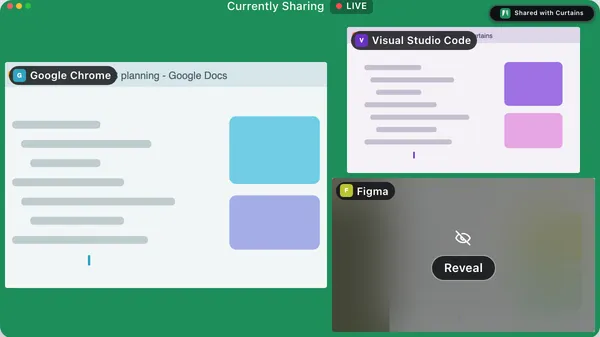
The window uses the current blur style, Blur or Solid fill. When a window is blurred, its row shows Reveal; click it to show the window again.
Prepare a window
Prepare adds a window with the whole window already blurred, from its very first frame, so viewers never see any of it. This is the safe way to bring in a window you want to check first.
- In Sources, hover a window that isn’t shared yet and click Prepare.
- Or hold Option and click the window. On Windows, hold Alt.
It works in a draft and while Live. Studio says Blurred for viewers next to Reveal. When you’re ready, click Reveal on the window on the preview or in the Order list.
A window with any blur or fill never shows its title to viewers, even with Show window titles to viewers on.
This is different from Hide from this list, which only takes an app out of Sources. See Apps in Sources.
Manage and use blur from the keyboard
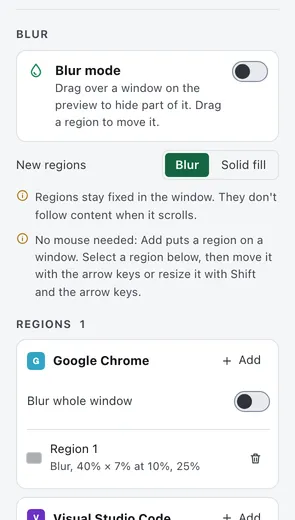
The Tools panel lists every region, grouped by window. You can do everything there without a pointer.
- Click Add next to a window to place a region in the middle of it.
- Select the region and move it with the arrow keys. Hold Shift with an arrow key to resize it. Hold Option for smaller steps.
- Press Delete to remove it.
Blur is saved with combos
Regions and whole-window blur are saved in a combo, and applied from the first frame when the combo starts, even when it starts Live.
Related
- Apps in Sources: choose which apps Sources lists.
- Draw on your windows: the toolbar’s other job.
- Combos
- Floating remote and menu bar