Keyboard shortcuts
Every Curtains shortcut, and how to change them.
On this page
Curtains has global shortcuts that work in any app, so you can pause, switch layouts or focus a window without bringing Studio back over your meeting.
To see them in Studio, click Shortcuts in the left rail.
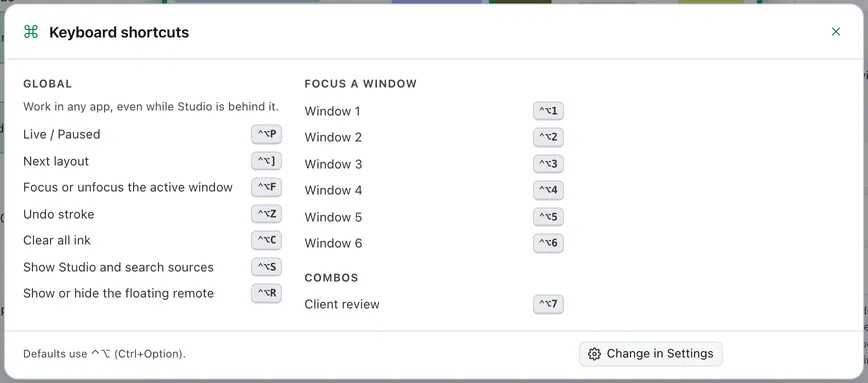
Global shortcuts
They work from any app, even while Studio is behind it. The defaults use Control Option (Control and Option) on a Mac, and Control +Alt on Windows.
| Action | Shortcut | What it does |
|---|---|---|
| Live / Paused | Control Option P | Switches the session between Live and Paused. |
| Next layout | Control Option ] | Steps to the next layout. |
| Focus or unfocus the active window | Control Option F | Focuses the shared window in front, or takes the focus off it if it is already focused. With no shared window in front, it ends a focus that fills the canvas. |
| Undo stroke | Control Option Z | Removes your last stroke of ink. |
| Clear all ink | Control Option C | Clears all ink. |
| Show Studio and search sources | Control Option S | Brings Studio forward, with the search box in Sources ready to type in. |
| Show or hide the floating remote | Control Option R | Shows or hides the floating remote. |
| Focus window 1 to 6 | Control Option 1 to Control Option 6 | Focuses the window in that place in the order. Pressing it again doesn’t take the focus off. |
Focus makes a window the big one. In Focus it becomes the main window above the filmstrip, and in Grid, Follow and Free it fills the canvas until you unfocus it. See Focus.
Show or hide the floating remote works only with a session running. See Floating remote and menu bar.
Each combo can have its own shortcut too. They are listed under Combos in the sheet. See Combos.
Shortcuts in Studio
These work when Studio is in front.
| Action | How |
|---|---|
| Swap two windows, or make one the big one | Drag it onto another. |
| Focus or unfocus a window | Double-click it on the preview, or press B in the Layout panel or on the preview. |
| Unfocus, back to the layout | Esc |
| Bring a window’s app to the front | Hover it, then click its top-right button, or press F in the Layout panel or on the preview. |
| Place a window freely in the Free layout | Hold Option while dragging. |
| Remove a blur region | Hover it, then click ×. |
Without a mouse
| Action | Keys |
|---|---|
| Move a window in the order (Layout panel) | Option with ↑ or ↓ |
| Move a window on the preview | Option with the arrow keys |
| Make it the big window (Focus, Follow) | Enter |
| Draw on the preview | Arrow keys, then Space |
| Move a window in the Free layout | Arrow keys |
| Resize it | Shift with the arrow keys |
| Add a blur region | Tools, then Add |
| Move or resize a blur region (Tools) | Arrow keys, or Shift with the arrow keys |
| Remove a blur region (Tools) | Delete |
On Windows, Option is Alt.
Change a shortcut
-
Open the shortcuts settings
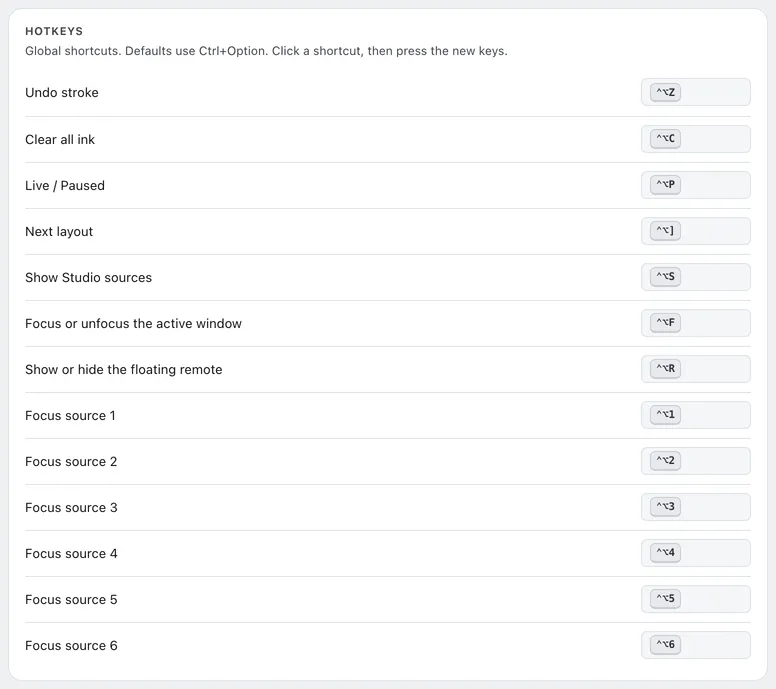
Open Settings › Shortcuts, or click Change in Settings in the shortcuts sheet.
-
Click a shortcut
Click the shortcut you want to change.
-
Press the new keys
Hold a modifier (Ctrl, Alt or Shift) and press a key. Press Esc to cancel.
Curtains refuses a shortcut that another Curtains action already uses, and says “is already used”. A shortcut needs a modifier, so it never gets in the way of typing.
To set a combo’s shortcut, open the Combos panel, click in its Hotkey box and press the keys. Click the × beside it to clear it.
If macOS or another app has already taken a shortcut, Curtains shows “Some hotkeys are unavailable” and names the ones it couldn’t register. Pick a different shortcut for those.
Related
- Floating remote and menu bar: the same controls as buttons.
- Focus: what focusing a window does in each layout.
- Settings: every option in Settings.